Document tools that keep work moving
Find PDF, image, collage and QR tools, choose the operation you need, and check the result before sharing.
Choose the task
Start with the document task you need to finish, then work from one focused screen.
Control the result
Where a tool offers options, choose the settings before processing instead of guessing after download.
Continue working
Move from one completed task to the next without rebuilding your workflow.

Work with PDF pages
Use [Merge PDF](/en/tools/merge-pdf) to combine files, [Split PDF](/en/tools/split-pdf) to separate pages, or [Organize PDF](/en/tools/organize-pdf) to change their order. Rotation, cropping and page-number tools address different page-level changes. Choose the smallest operation that solves the problem rather than converting the whole document unnecessarily.
Check the final page count and order before sharing. Mixed page sizes can be intentional; a rotated scan or missing page can make an otherwise valid PDF difficult to read.
Convert documents when another format is needed
The [PDF directory](/en/pdf-tools) includes document and image conversion tools. [PDF to Word](/en/tools/pdf-to-word) is useful when editable text is needed, while [JPG to PDF](/en/tools/jpg-to-pdf) combines pictures into a document.
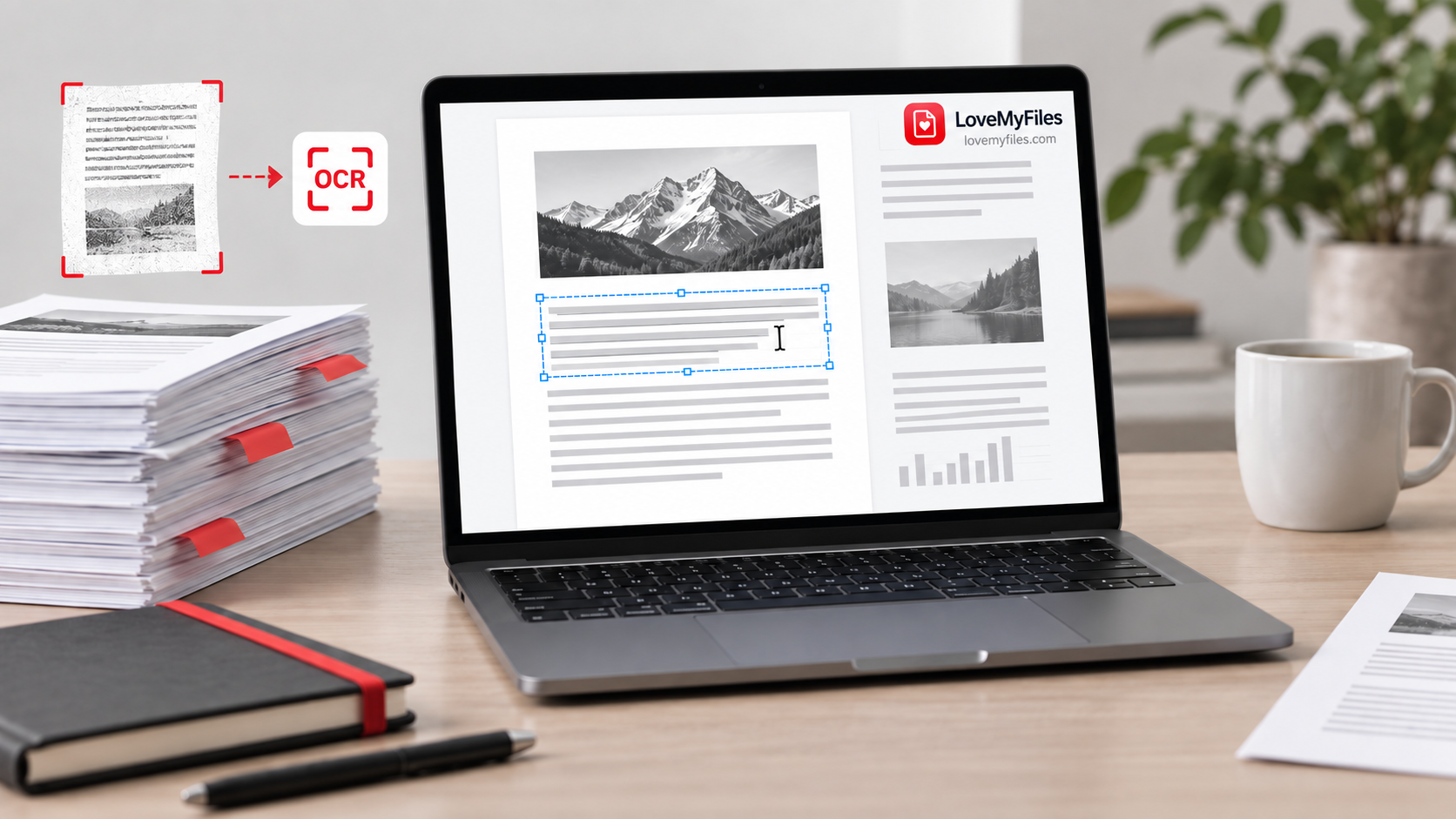
A scan contains pictures of text, so OCR may be needed before text-based work. Conversion cannot always recreate the original layout, fonts or complex tables. Review the output in the application where it will be used.
Prepare images for their destination
- [Compress Image](/en/image-tools/compress-image) reduces file weight. An already compressed image may shrink very little.
- [Resize Image](/en/image-tools/resize-image) changes width and height. Keep the aspect ratio when you do not want stretching.
- [Crop Image](/en/image-tools/crop-image) removes unwanted edges rather than squeezing the whole picture into a new shape.
- [Image Converter](/en/image-tools/convert-image) changes the file format. Check transparency, colour and destination compatibility.
For a form upload, check dimensions, format and exact file size. Meeting one requirement does not establish that the photo meets the others.
Create a collage or QR code
The [Photo Collage Maker](/en/photo-collage-maker) arranges multiple images into a composition. Inspect the framing of each photo before exporting.
The [QR Code Generator](/en/qr-code-generator) creates codes for supported content types. Check the destination and scan the exported code at its intended size before printing. A QR code does not host a website or make a private destination public.
Keep and check the result
Available tools have their own file limits and settings. Read the uploader's requirements before selecting files, keep the originals, and reopen the download. The [Security page](/en/security) and [Privacy Policy](/en/privacy) explain file access and handling; the [contact form](/en/contact#contact-form) is available for reproducible problems.