Compress a Large Print JPEG for Sharing: Pixels, Size and Colour
Prepare a lighter sharing copy of large JPEG artwork. Understand pixel limits, colour conversion, target size and why you should keep the print master.
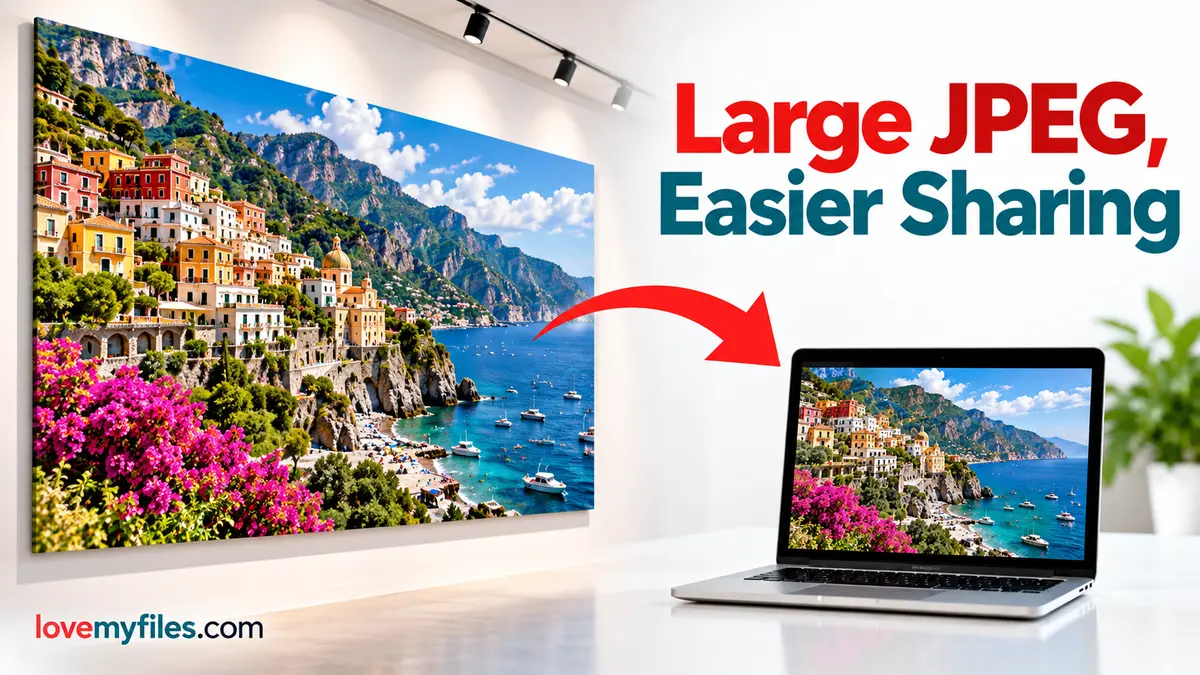
A print-ready JPEG can be much larger than the image somebody needs to review on a screen. Keep the print master and create a separate sharing copy. LoveMyFiles Compress Image can reduce JPEG file weight, but compression, resizing and colour conversion are different operations with different consequences.
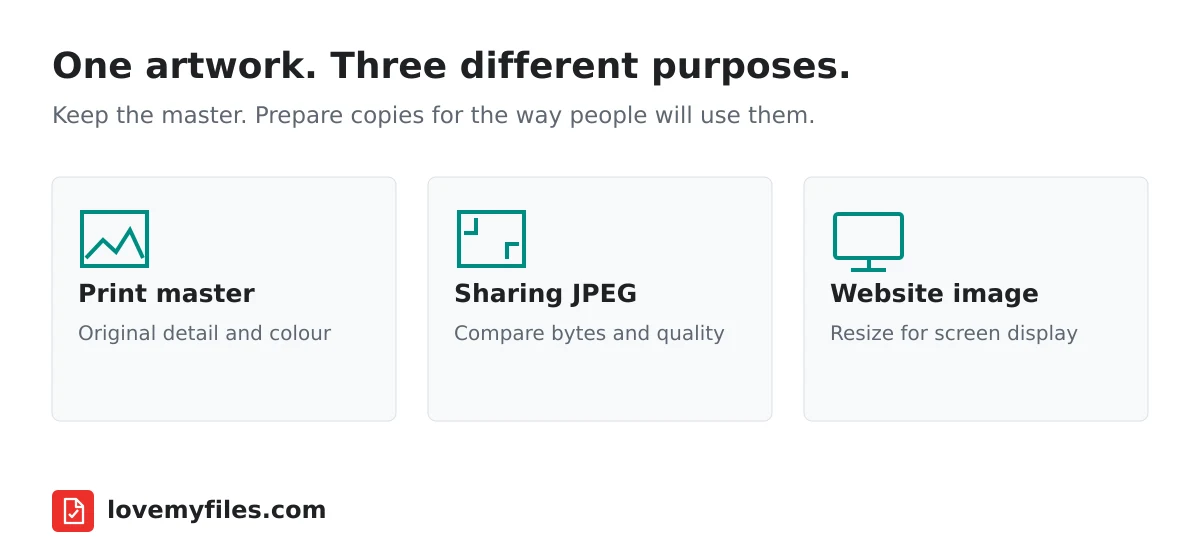
Start with pixels, not the dimensions on the artwork
An artwork labelled 116 by 48 inches might be a large exhibition panel, but the label does not tell a browser how much memory the JPEG will require. Pixel dimensions do. A 17,400 by 7,200 pixel image contains 125,280,000 pixels, or 125.28 megapixels. It is very different from a phone photo even if both files end in JPG.
Compressed file size is another measurement. A JPEG around 20 MB on disk can occupy much more memory when decoded. This explains why a large artwork may encounter processing limits even though its download size appears modest. You have not necessarily selected the wrong format; the tool may be protecting the device or server from an unusually large decoded image.
Check width, height and file size before choosing your operation. Decide whether the recipient needs to inspect every detail, approve a general layout or place the image on a website. Those tasks do not require the same output.
Choose between compression and resizing
Compression reduces the bytes used to represent an image. JPEG compression is lossy: lowering quality can discard image detail, especially around lettering, fine line work and sharp colour boundaries. The width and height can remain unchanged even while the file becomes smaller.
Resizing changes the pixel dimensions. A smaller image may be sufficient for a web preview, but it will not preserve the same opportunity to inspect small print details. Use Resize Image when reducing dimensions is actually the goal. Do not shrink an exhibition artwork simply because the recipient asked for a lighter email attachment if they still need to assess fine text.
For many review tasks, keeping the pixel dimensions and reducing JPEG quality moderately is a sensible first attempt. Compare the output at a useful zoom level. If the attachment is still too large, discuss a resized review copy rather than repeatedly reducing quality until text becomes visibly damaged.
How LoveMyFiles handles unusually large JPEGs
The normal compression path handles supported images in the browser. Large JPEGs above 50 megapixels use a separate local server path, up to the current limits of 150 megapixels and 30 MB per file. That path uses libvips and preserves pixel dimensions rather than applying the browser's optional resize settings.
These are limits for the large-JPEG compression path, not a promise that every LoveMyFiles image tool accepts a 150-megapixel file. A file outside the limits should be reduced or exported again from its source application. Splitting a large batch into smaller selections can address a batch limit, but it cannot make an individually oversized image fit a per-file limit.
Large jobs are handled conservatively to control server memory. A processing stage may therefore take longer than a small browser-side image. Let the operation finish and use the reported result; do not start several copies of the same job because the first one has not immediately returned.
Keep colour-sensitive print files separate
Print artwork may use CMYK colour, while normal browser previews are intended for screen display. The large-JPEG path converts CMYK to sRGB with colour-profile handling. This makes the sharing copy more suitable for screen viewing, but it is not a replacement for the original print file or a colour-managed print proof.
If colour approval matters, send the original through the printer's agreed workflow and identify the compressed copy as a screen preview. A bright colour on a monitor and the same colour printed on a material can look different even when no tool is malfunctioning. Do not use a browser preview as the sole evidence for production colour approval.
Save the sharing copy under a clearly different name. Keeping an original, a screen review JPEG and a resized website image in separate folders is more reliable than overwriting one file several times and trying to remember what changed.
Compare the result where defects actually appear
Start with the overall layout, then inspect small text, logos, gradients and thin lines. JPEG artefacts often appear at high-contrast edges. Look for ringing around lettering, blocky areas in shadows and banding in smooth backgrounds. A thumbnail alone cannot show all of these defects.
Compare the original and output file sizes as well. Percentage savings describe bytes saved; they are not a score for visual quality. A very large reduction is useful only when the output remains appropriate for its purpose. Conversely, a modest reduction may be the right result for an image that was already efficiently encoded.
If the output is not smaller, do not assume the tool should keep re-encoding until the result changes. Already optimised files can have little room for improvement without visible loss. Consider whether a different delivery method or a smaller review resolution would better meet the recipient's needs.
Target KB is a goal, not an unlimited guarantee
The compressor includes a custom target-size option. It searches within bounded processing attempts; it cannot guarantee that every image reaches any requested number while keeping its dimensions and acceptable detail. An extremely small target for a huge artwork is usually a conflict between the requested bytes and the content being preserved.
Choose a realistic target based on the destination's actual limit. If the receiving portal demands a small image, check whether it also specifies dimensions. A dimension-aware export is often better than forcing a giant source into a tiny byte budget. For formats and transparency trade-offs, see the image optimisation guide.
A reliable review-copy workflow
Keep the print master unchanged. Compress a copy, download the result and inspect the important text and artwork at useful magnification. Confirm its width, height and file weight. Label it as a screen review copy if colour or print reproduction matters.
If a web image is needed too, create a separately resized version rather than handing a 125-megapixel file to a page that displays it in a narrow column. Use Image Converter only when the destination actually needs a different format. Conversion by itself is not a guarantee of smaller size.
Should I replace the print master with the compressed result?
No. Keep your original, especially for CMYK artwork, fine print details and future edits. The sharing copy serves a different purpose.
Why can a 20 MB JPEG hit an image limit?
Its decoded pixel count can be much larger than the compressed file suggests. File bytes and megapixels measure different things.
Does JPEG compression remove location metadata?
Do not rely on compression as a privacy operation. Use Image Metadata and inspect the downloaded copy if metadata removal is required.
Try a related tool
Reduce JPEG, PNG and WebP file sizes with quality and target-size controls.
Compress ImageRelated Guides
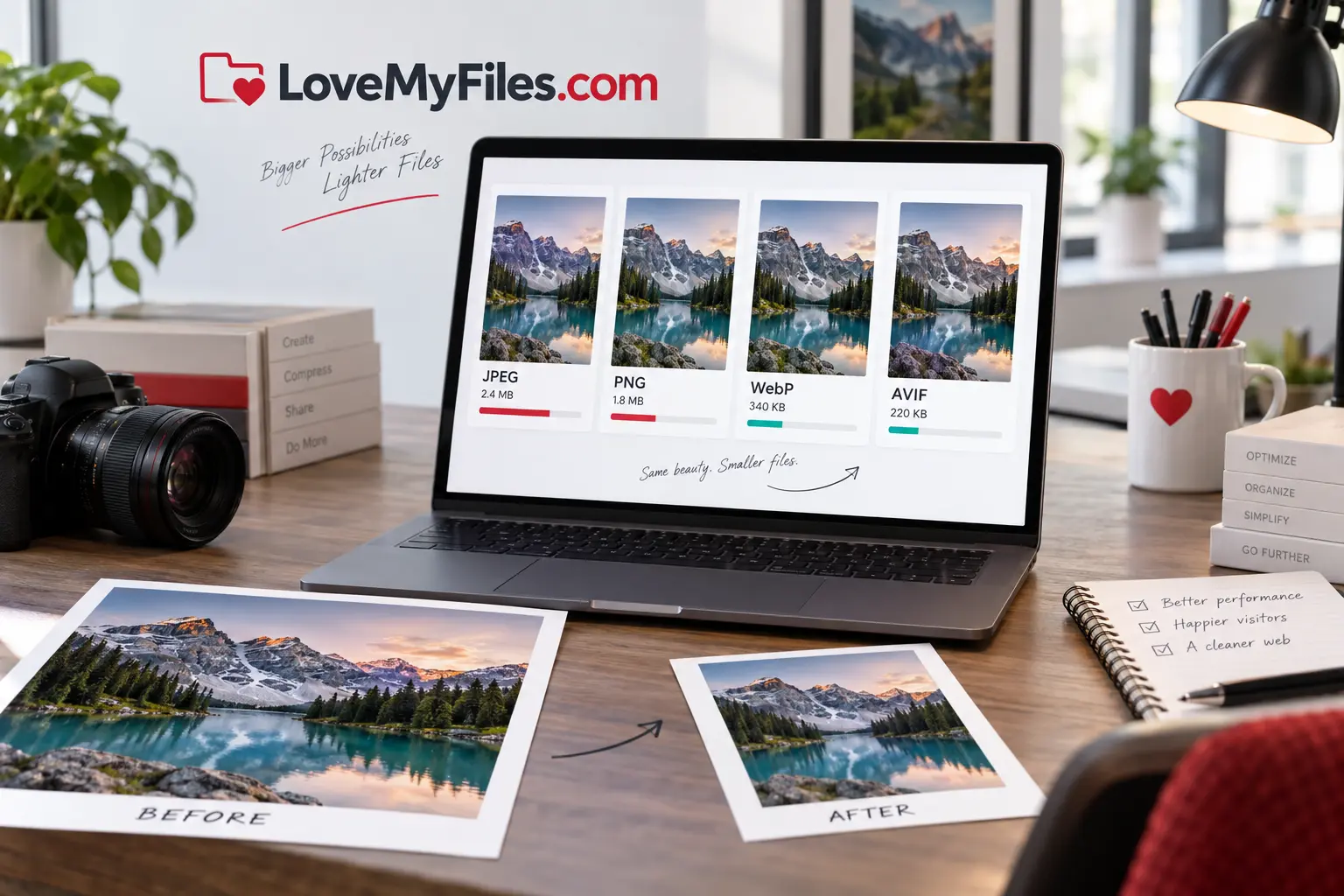
Image Optimization Guide: JPEG, PNG, WebP or AVIF?
Choose the right image format, dimensions and compression settings for faster websites, email and reliable uploads.
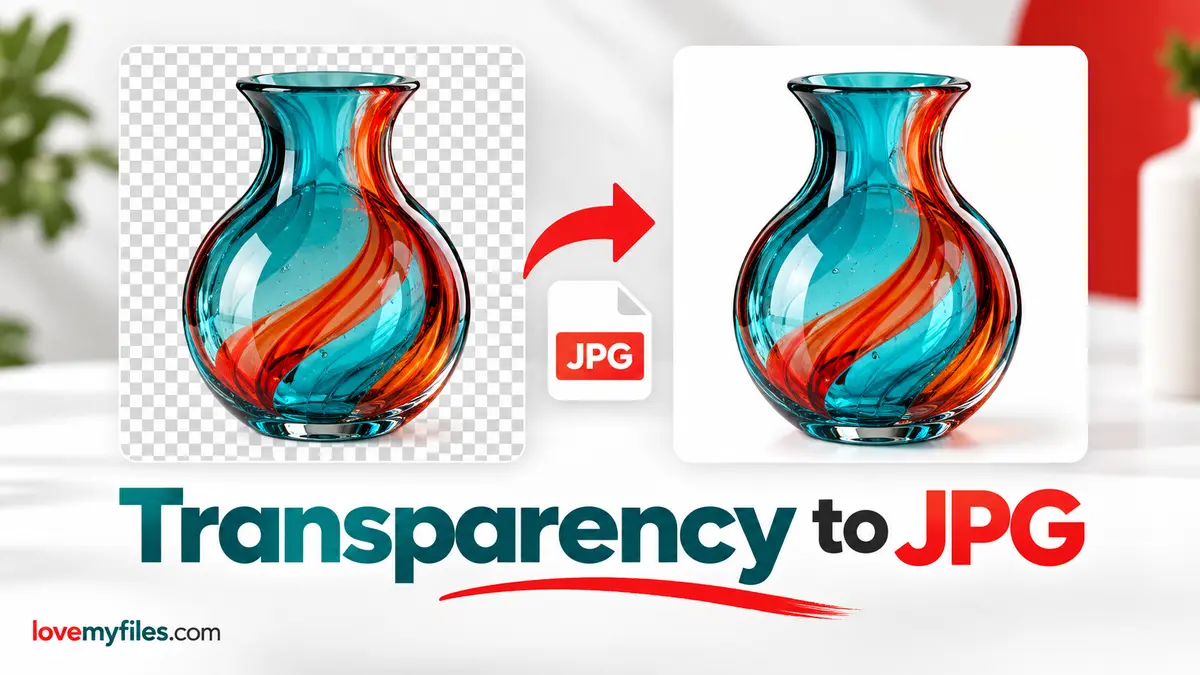
Why Transparent Images Lose Their Background When Converted to JPG
Choose PNG, WebP or a flattened JPEG for transparent artwork. Set the JPG background in LoveMyFiles and inspect edges, lettering and the downloaded copy.

Build an Event Sharing Kit with PDFs, Images, Short Links and QR
Prepare an event PDF, screen images, a managed link and a printable QR. Check privacy, file quality and the complete visitor journey before sharing.
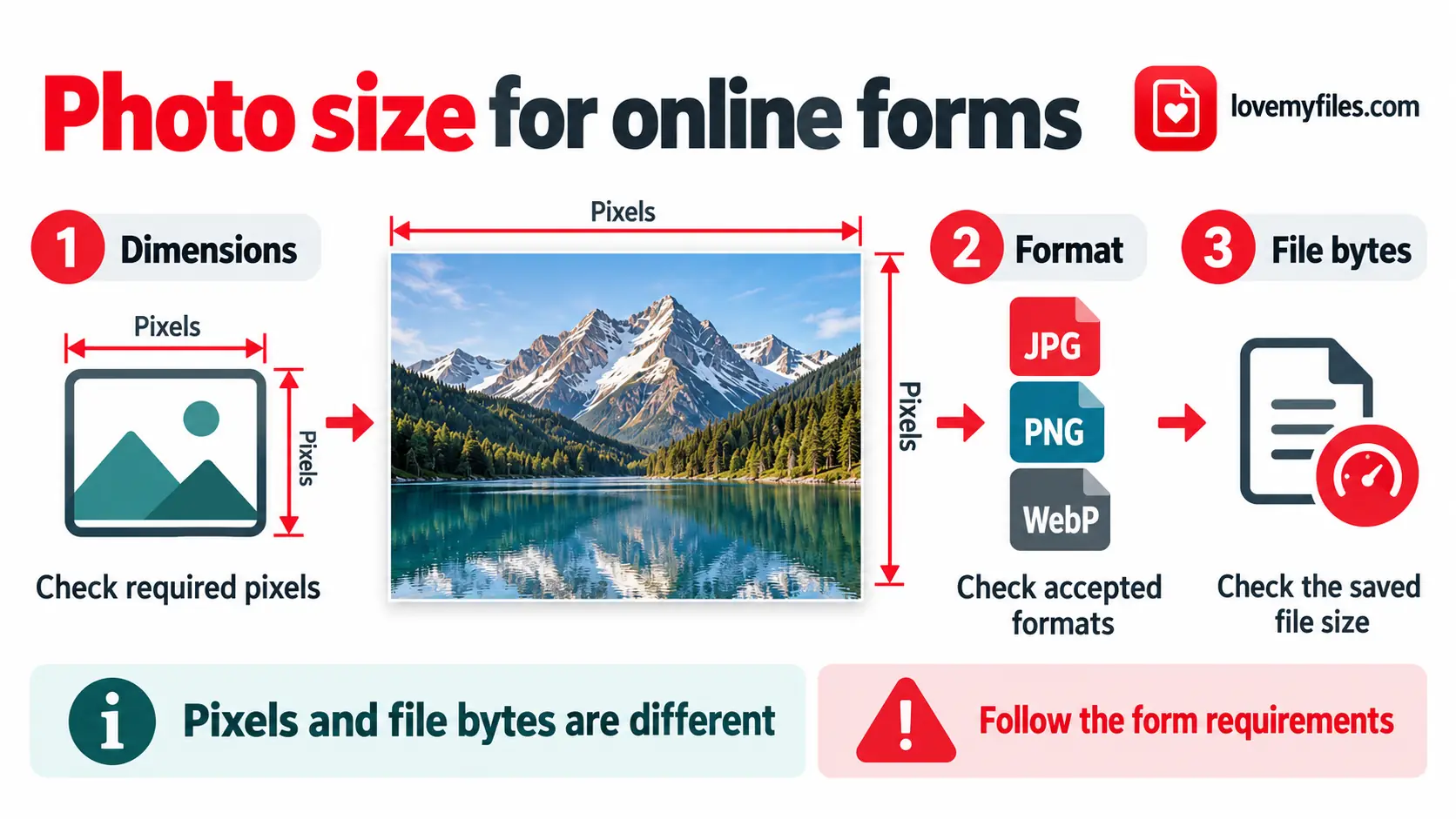
How to Reduce Photo Size to 20KB, 50KB, 100KB or 200KB
Match a photo's dimensions, format and file size to an upload form using resize, conversion and target-size compression.