Build an Event Sharing Kit with PDFs, Images, Short Links and QR
Prepare an event PDF, screen images, a managed link and a printable QR. Check privacy, file quality and the complete visitor journey before sharing.
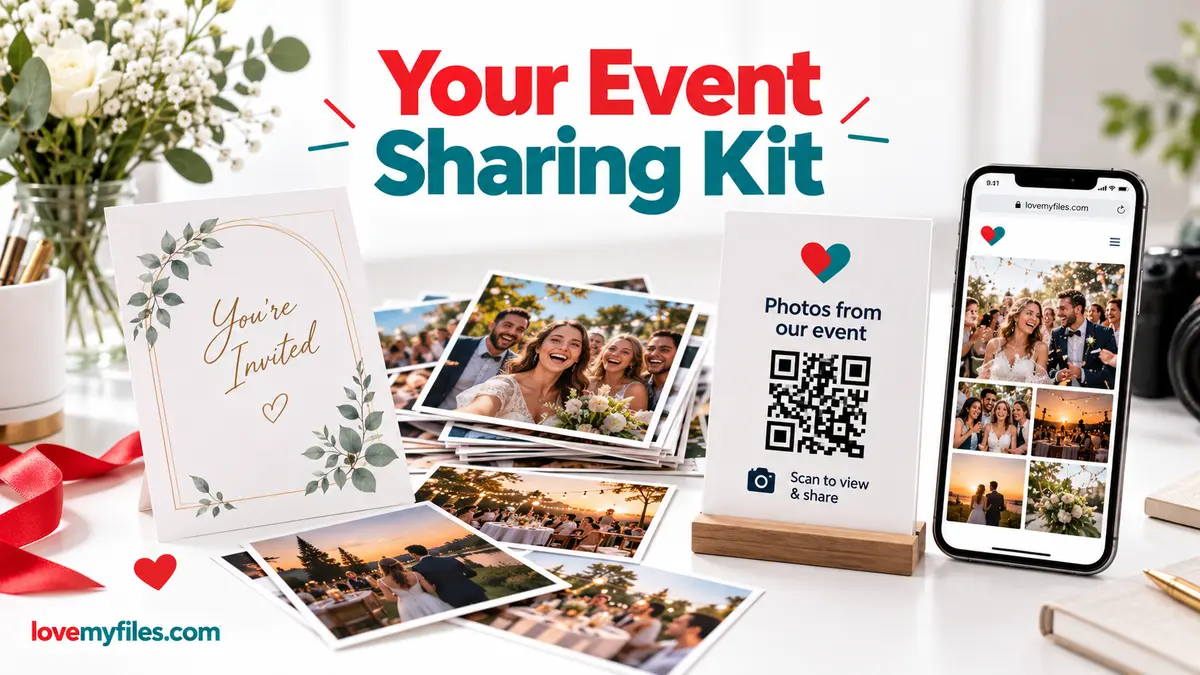
An event sharing kit is a small collection of files and links prepared for different situations: a PDF someone can read, images that load comfortably on a screen, a stable destination address and a QR for printed material. Prepare each item for its purpose instead of asking one enormous artwork file to serve every channel.
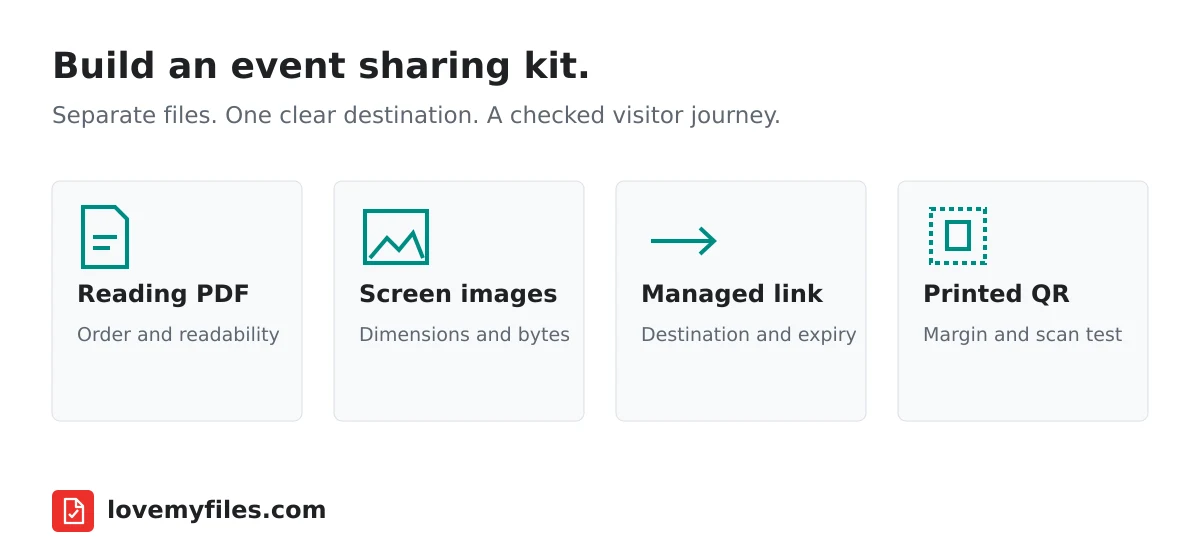
Define the destination before preparing the files
Start with the page people should reach. It might contain an event schedule, a registration form or a product overview. Confirm that the page is public and works on a phone without your account session. The files and QR should support that destination rather than lead to several unrelated versions of the information.
Decide who owns the page and who can update it. LoveMyFiles helps prepare files and links; generating a QR does not create or host an event website. You still need an appropriate place for the destination content and any documents that visitors will download.
Write down the essential information that must agree across the kit: event name, date, venue, contact route and final destination. Review these details before working on design. A beautiful poster with an outdated time creates a bigger problem than a plain but accurate one.
Prepare a readable PDF, not a folder of fragments
If you have an introduction, agenda and directions as separate PDFs, Merge PDF can combine them into a single reading copy. Put them in the intended order and inspect the downloaded result. Mixed source page sizes may remain visibly different; merging is not the same as redesigning every page to match.
Remove pages that are irrelevant to the public audience through Organize PDF where appropriate. Keep private planning notes out of the sharing copy. If identifying details appear on the pages, handle them as content rather than assuming a filename change makes them disappear.
Check the PDF on a small screen. Text that looks acceptable in a full-width desktop preview may require uncomfortable zooming on a phone. If the document is image-heavy and cumbersome to download, try Compress PDF and compare the result. File reduction is useful only if the important text and diagrams remain readable.
Create screen images separately from print masters
Keep high-resolution print artwork intact. Create lighter images for email, website previews or messaging from copies. Use Resize Image when you need different pixel dimensions, and Compress Image when file weight is the issue.
Do not assume that a compressed artwork becomes a print proof. Colour and detail requirements differ between a monitor and a printer. A huge CMYK JPEG can need a screen-friendly copy while its original remains the correct file for the print supplier. Label those versions clearly to prevent somebody forwarding the wrong one.
A small set of well-chosen images usually communicates more clearly than a collage packed with every photograph. If a collage genuinely helps explain the event, use Photo Collage Maker and check that captions and subjects remain visible in the final export. The editor is a separate tool, not an automatic step that processes your whole kit.
Review metadata and visible information
An event photo can reveal location through both metadata and the scene itself. Inspect image properties with Image Metadata when the sharing copy needs a privacy check. Clearing GPS fields does not hide a venue name printed on a sign in the picture.
For the document, PDF Metadata can inspect and clear document properties. Review visible names, phone numbers and internal references separately. Do not describe the kit as anonymous simply because one metadata operation completed.
Check permissions before including photographs of people, confidential materials or copyrighted artwork. A technical tool can transform a file; it cannot decide whether you have permission to publish its contents. Keep the public version limited to information the intended audience should receive.
Use a short link when ongoing maintenance is useful
The URL Shortener can provide a managed address for a destination. This is useful when you want owner controls or later destination changes. It is not necessary for every link: a stable, readable direct URL may be sufficient for a simple event page.
If you use a short link, confirm that it is active and review its expiry before printing it. Keep account access available to the person responsible for the campaign. A link that expires during the event or belongs to an inaccessible account is a maintenance problem that design cannot solve.
Campaign parameters can help distinguish channels, but do not put attendee information into them. Use a consistent campaign label and record which link goes on each item. The clicks versus visits guide explains why redirect activity is not the same as a completed registration.
Add the QR after the destination is approved
Generate the QR with QR Code Generator using the approved address. Download the code itself rather than taking a screenshot. Keep the clear margin and place it somewhere people can comfortably scan it.
If the QR encodes a managed short URL, an owner destination change can affect future visitors without changing the printed code. If it encodes a direct static address, the printed content cannot be rewritten. Make this choice before producing hundreds of cards or posters.
Print a proof at the final size. Check scanning, the final destination and the next action on more than one phone if possible. Include a readable fallback address outside the clear margin when space permits. A QR printing checklist gives a more detailed review process.
Test the kit as a visitor would use it
Begin with the printed QR or public link, not your editor or logged-in dashboard. Open the destination, download the PDF and view the images on a phone. Confirm that no step unexpectedly requires your personal account and that the files are the final sharing copies.
Ask someone unfamiliar with the project to try the same journey. They can often spot an unclear instruction or an ambiguous button that the person building the kit overlooks. Their feedback is about usability, not evidence that every possible device or browser has been tested.
Keep an original folder, a final public folder and a brief record of the approved destination. After the event, decide whether the link should remain active, point to follow-up information or be retired. Update it intentionally rather than leaving a stale registration page connected to printed material indefinitely.
Does LoveMyFiles automatically run this entire workflow?
No. These are separate tools used in a planned sequence. You choose the source files, destinations and publication arrangements.
Should the PDF and images use the same file size?
No. Prepare each for its role and the destination's requirements. A readable document and a web thumbnail have different needs.
What is the most important final check?
Follow the public journey from QR or link to the destination and its downloadable files, using the final versions rather than the source materials.
Try a related tool
Merge PDF files online in the order you choose. Arrange 2 to 20 PDFs, combine them into one document, and download the result.
Merge PDF Online Free - Combine PDF FilesRelated Guides

Organise Scanned Receipts and Documents into a Usable Sharing Copy
Prepare clear document images, group related PDFs, extract text when appropriate and check privacy without treating OCR output as verified financial data.
Compress a Large Print JPEG for Sharing: Pixels, Size and Colour
Prepare a lighter sharing copy of large JPEG artwork. Understand pixel limits, colour conversion, target size and why you should keep the print master.
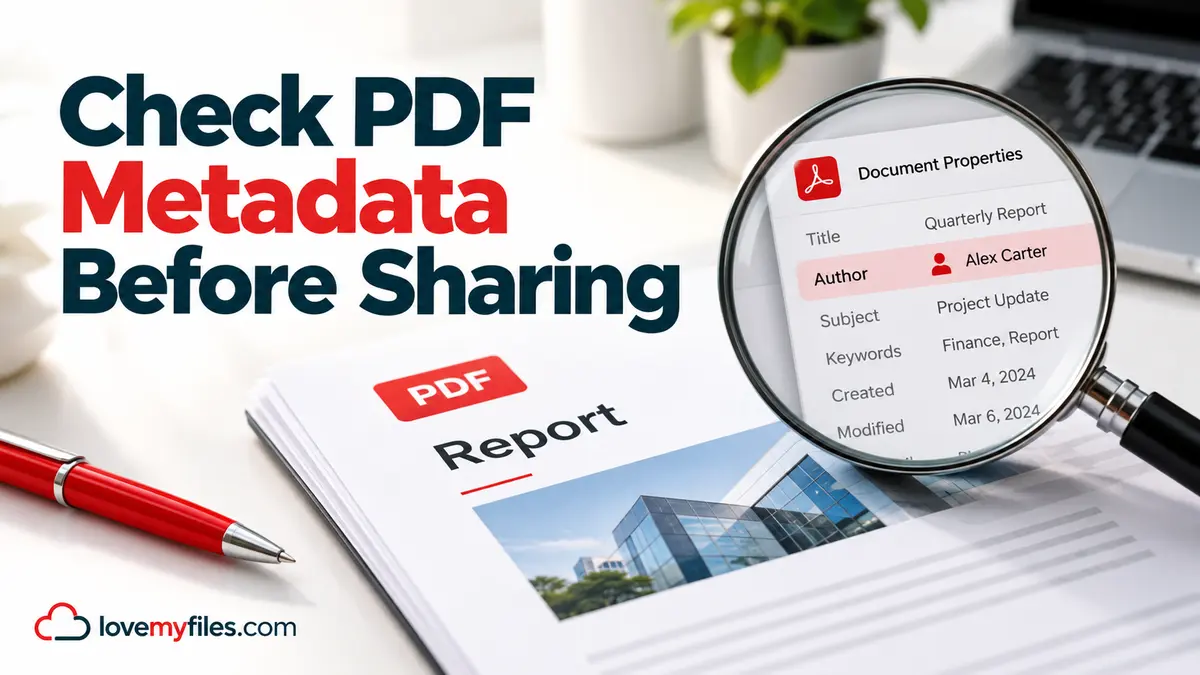
How to Remove PDF Metadata Before Sharing a Document
Inspect and remove PDF document properties, understand signed-file limitations, and check the downloaded copy without confusing metadata removal with redaction.
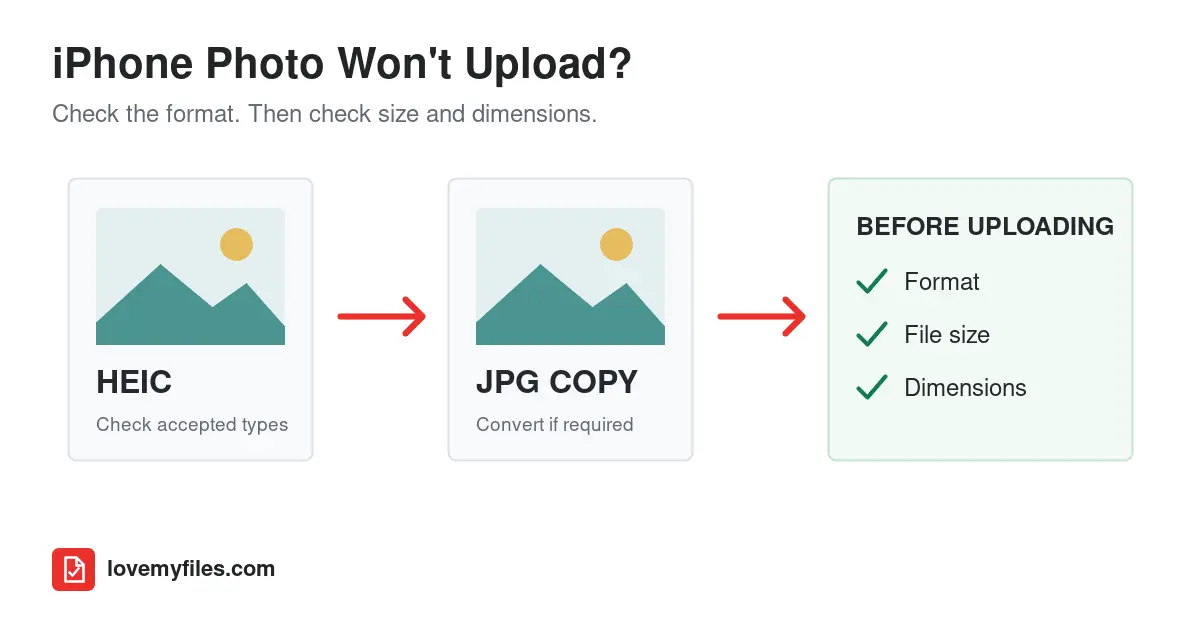
Why Won't My iPhone Photo Upload? Fix HEIC, JPG & File-Size Errors
If a form rejects your iPhone photo, check its accepted formats, file size and pixel dimensions. Convert HEIC only when needed, then compress or resize the compatible copy and reopen it before uploading.