How to Remove PDF Metadata Before Sharing a Document
Inspect and remove PDF document properties, understand signed-file limitations, and check the downloaded copy without confusing metadata removal with redaction.
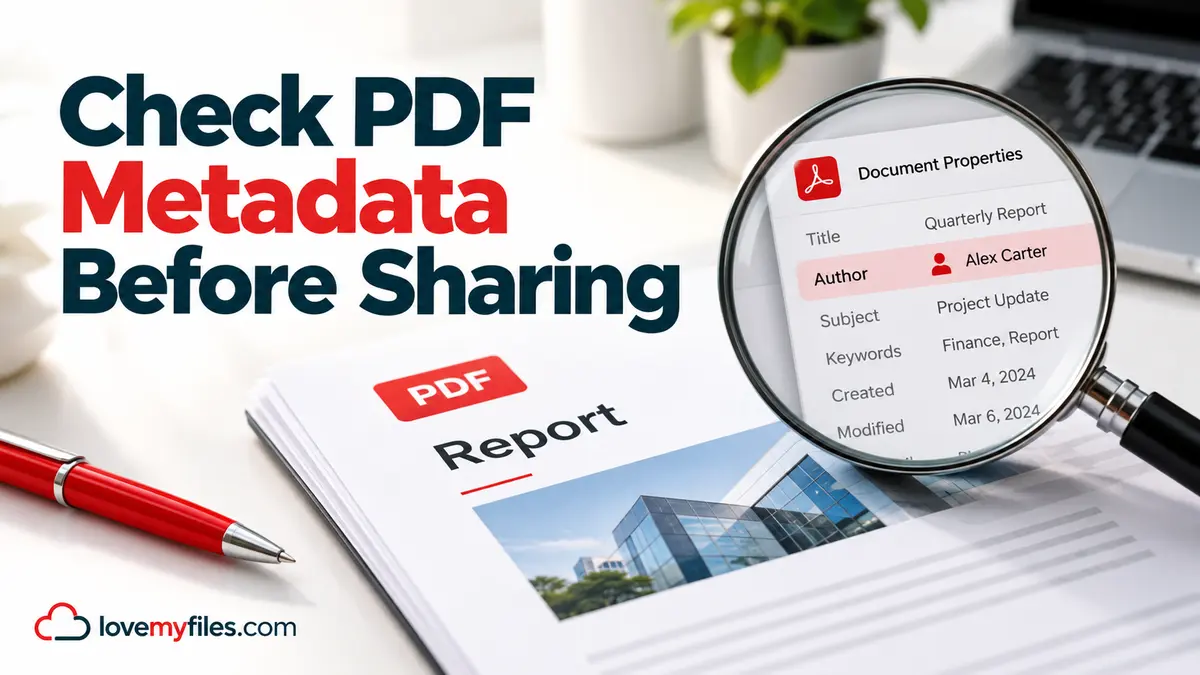
PDF metadata removal clears descriptive document fields; it does not erase the words, pictures or personal details visible on a page. Start by deciding which kind of information you need to remove. Use LoveMyFiles PDF Metadata for document properties, and review the actual document separately before sending it.
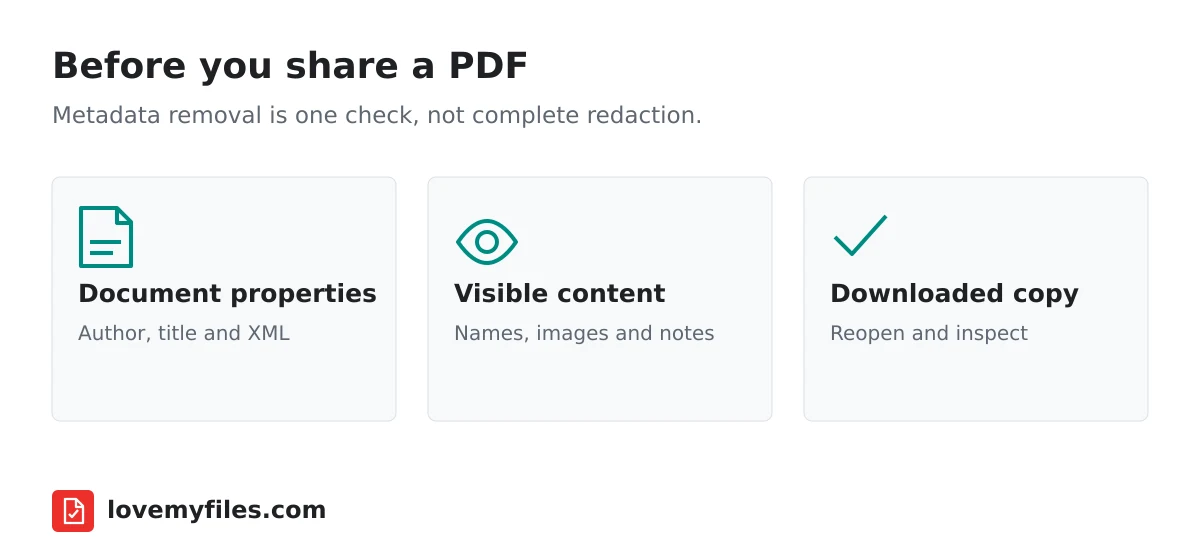
What PDF metadata can reveal
A PDF can carry an author name, title, subject, keywords, creation date and the name of the software that produced it. Some properties come from an office application's settings rather than a deliberate decision by the person sharing the document. A report written on a colleague's computer may therefore identify that colleague as its author even when somebody else prepared the final version.
These fields are not always sensitive. An accurate document title can make a file easier to recognise. The issue is whether the information is appropriate for the recipient. An internal project name, an employee's full name or a software-generated title that refers to an old draft may be unsuitable in a public copy.
PDFs can also contain XML metadata, often described as XMP, separately from their standard document properties. Looking only at the Author field in one viewer is not a complete inspection. LoveMyFiles' metadata inspector reads the standard properties and reports XML metadata when present. The displayed XML is limited to 65,536 characters, so an unusually long metadata record may not appear in full.
Inspect the original before removing anything
Open the PDF Metadata tool and choose the PDF you plan to share. Review the properties shown by the inspector. Ask three practical questions: does the author identify the right person, does the title describe the final document, and do any fields disclose an internal reference that should not leave your organisation?
Keep your original file. Work on a separate sharing copy so you can compare the result and retain the source document if you need to make corrections. Renaming a file on your computer changes its filename; it does not necessarily change the title stored inside the PDF. This is why inspecting the downloaded document matters even when its filename looks correct.
The current LoveMyFiles PDF Metadata tool accepts PDFs up to 30 MB. It is not an unlock tool: an encrypted document must be handled through an authorised workflow before metadata can be inspected or cleared. Do not keep retrying a password-protected file expecting the metadata operation to bypass its protection.
Remove properties, then download the new copy
Choose the metadata removal action after inspecting the file. LoveMyFiles clears the document metadata and XML metadata and writes a new PDF through its local server-side processing engine. It does not send this operation to an external file-conversion service.
Download the result rather than assuming the source file has changed. Your local original remains a separate file. Open the downloaded copy and run it through the inspector again. Check that the previously reported properties are no longer present. Also inspect representative pages, including pages with diagrams, forms or unusual page sizes, before treating the copy as ready to send.
The processing workspace is temporary and is removed after the operation completes or fails. That statement describes the tool's processing files; it is not a promise that metadata removal deletes your browser's history, your own original or copies already sent to other people. Your own sharing practices still matter.
Metadata removal is not redaction
An address printed on page two is page content, not merely metadata. Clearing document properties will not remove it. The same applies to names in a footer, a phone number in a scanned letter, a signature image or a project code printed in a drawing.
If the document contains information that should not be visible, use an appropriate content-editing or PDF redaction workflow and inspect its output separately. Do not use a metadata result as proof that visible content has been removed. Comments, attachments and form values also deserve their own review; this tool is not a comprehensive document sanitiser.
For a photographed document, inspect the source image as well. Image Metadata addresses image metadata, and the photo location privacy guide explains why clearing GPS fields is different from hiding a location visible in the picture.
Why signed PDFs need a different workflow
A digital signature can be affected by rewriting a document. The current metadata removal engine refuses PDFs containing signatures or signature fields rather than silently treating them as ordinary unsigned files. This is a deliberate limitation, not a reason to rename the file and retry.
If you need a clean public version of a signed document, ask the document owner for an unsigned source or an approved publication copy. Keep the signed original intact. A visible handwritten signature image and a cryptographic signature are different things, so confirm which one your document contains instead of relying on appearance alone.
Troubleshooting a rejected or unexpected result
The file cannot be inspected: confirm that it opens in a PDF viewer and is within the tool's size limit. A file with a PDF extension may still be corrupt or may contain a different format. Changing its extension will not repair it.
The author name still appears: make sure you reopened the downloaded result, not the original. A name may also be part of the page itself. Search the document and inspect headers and footers to distinguish visible text from document properties.
The document is encrypted: obtain permission and an appropriate unlocked source. Metadata removal does not recover a forgotten password or establish that you are entitled to modify a document.
The recipient still sees an old title: check the newly downloaded file in a second viewer. A recently opened file list or cloud preview may show cached information. Verify the file itself before concluding that the operation failed.
A final sharing checklist
Before attaching the PDF to an email or uploading it to a public site, check the downloaded filename, inspect its properties again, review visible content and verify the recipient's access requirements. If the file is too large, Compress PDF is a separate step; compression should not be mistaken for a privacy operation.
Send the checked copy, not the source sitting beside it in your downloads folder. This small distinction prevents a common mistake: performing the right operation and then sharing the wrong file. Keep a clearly named final copy and retain your original privately for future edits.
Does removing metadata change the visible author name on a page?
No. A name printed in the document is content. Review and change that through the appropriate document workflow.
Can this make a PDF completely anonymous?
No. Metadata is only one source of identifying information. Visible content, attachments, prior recipients and distribution records can also identify a document.
Can I remove metadata from a digitally signed PDF?
The current removal engine rejects signatures and signature fields. Request an approved unsigned sharing copy instead of modifying the signed original.
Try a related tool
Inspect PDF document properties and XMP, then remove embedded metadata using a full rewritten PDF. Download a separate copy without rasterizing its pages.
PDF Metadata Viewer & RemoverRelated Guides

Build an Event Sharing Kit with PDFs, Images, Short Links and QR
Prepare an event PDF, screen images, a managed link and a printable QR. Check privacy, file quality and the complete visitor journey before sharing.

Organise Scanned Receipts and Documents into a Usable Sharing Copy
Prepare clear document images, group related PDFs, extract text when appropriate and check privacy without treating OCR output as verified financial data.
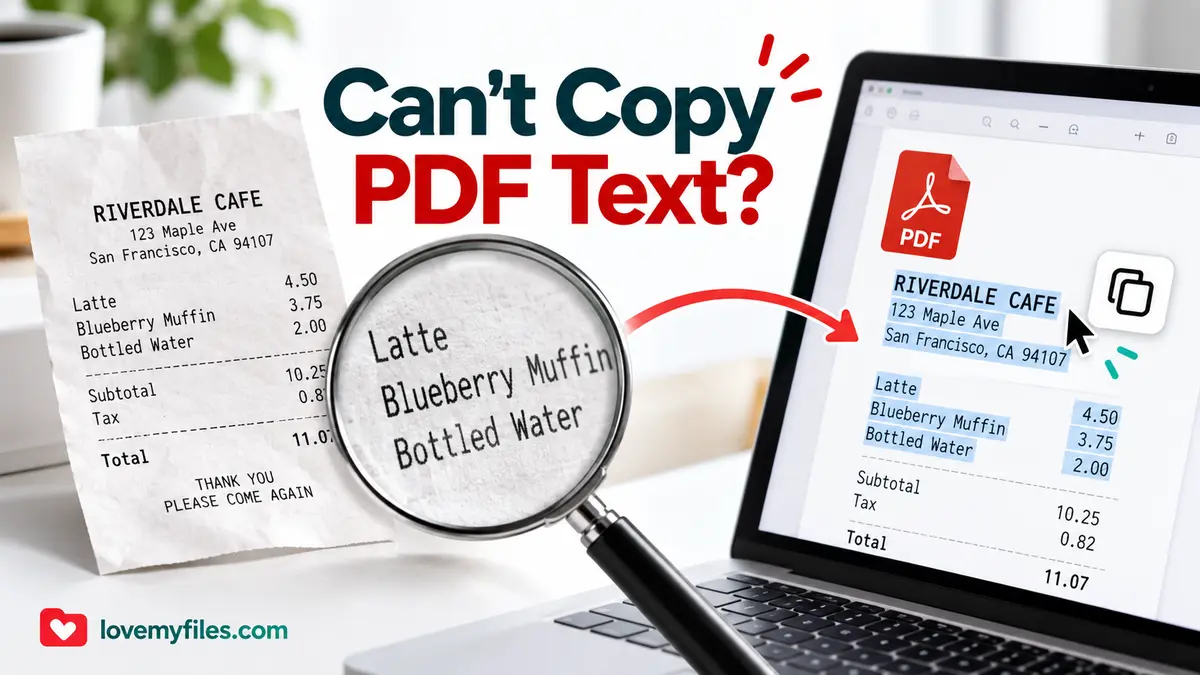
Cannot Copy Text from a PDF? Check the Cause Before Using OCR
Distinguish scanned pages, extraction problems and copy restrictions. Choose OCR or Word conversion carefully and verify names, numbers and reading order.
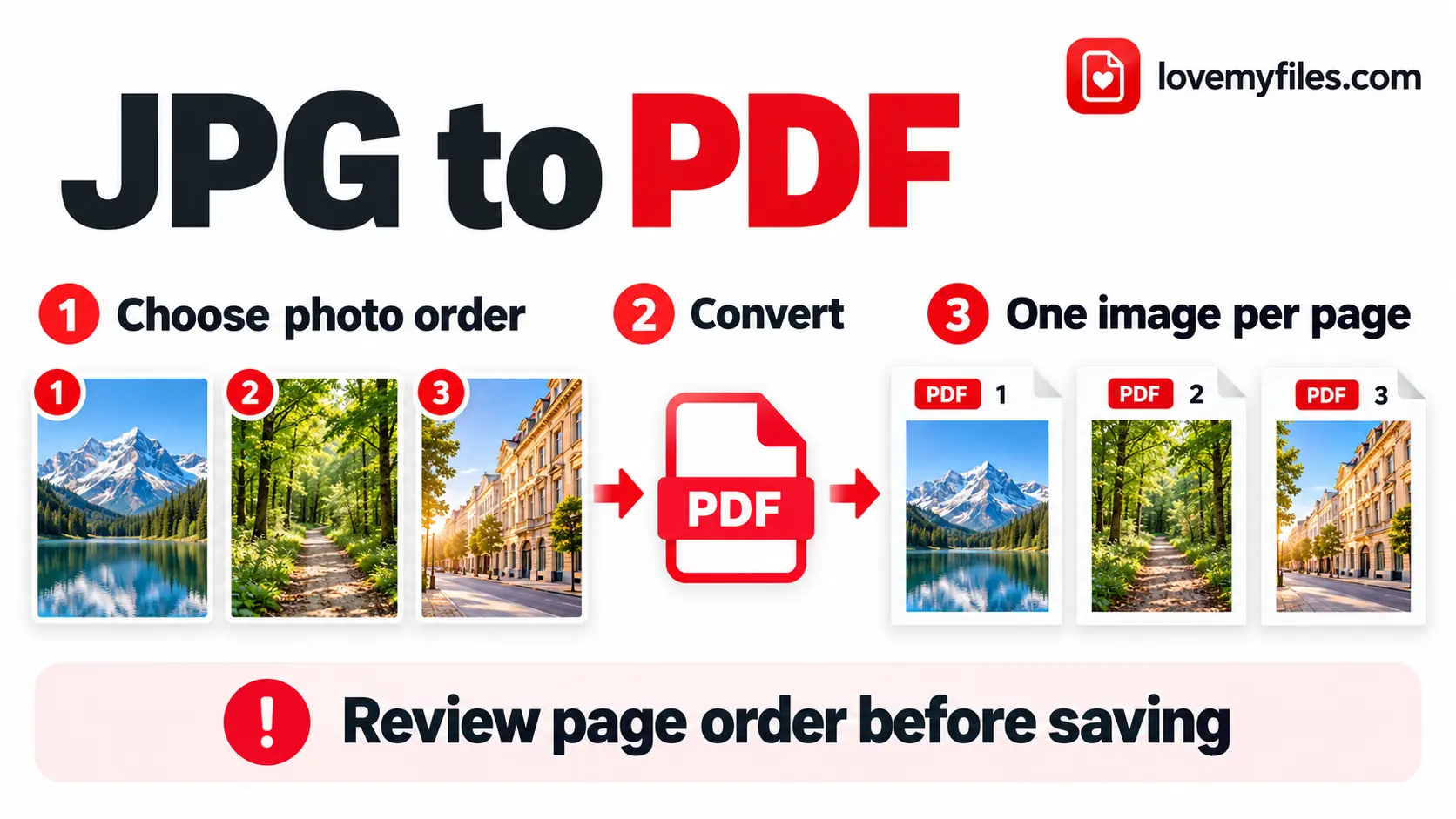
How to Convert Multiple JPGs to One PDF for Free
Combine JPG and PNG images into one PDF with LoveMyFiles.com. Set page order, size, orientation and margins, then check readability and upload size.