Free Online Photo Collage Maker
Combine photos in grids, heart frames or creative layouts. Adjust each crop, add captions and download your collage as JPG, PNG or WebP.
Free to use • No design skills needed • Works right in your browser

Start with a layout, then reshape its frames
Pick a layout that is close to your idea, drop in your photos, then reshape frames and styling without starting over.

Adjust frames, crops and captions
Resize frames, position photos and add text using the canvas controls.
38 flexible layouts
Choose grids, strips, editorial compositions, mood boards and more.
Drag, drop and swap
Place photos visually and exchange images between frames in one move.
Split and merge frames
Reshape the collage by dividing frames or combining compatible areas.
Fit or fill precisely
Keep the whole photo visible or crop it neatly inside its frame.
Add text and shapes
Layer simple headings, captions and graphic accents onto your canvas.
Choose an export format
Download your finished collage as JPG, PNG or WebP.
Choose grids, shaped frames or mixed layouts
Explore 38 starting layouts, including 12-photo and 16-photo grids, big-photo compositions and shaped frames. Choose a preview to open that arrangement in the editor.
 GridUse layout
 Big Photo WrapUse layout
 WideUse layout
 TallUse layout
 SquareUse layout
 MasonryUse layout
 MagazineUse layout
 PolaroidUse layout
 Photo StripUse layout
 Before & AfterUse layout
 FreeformUse layout
 HeartUse layout
 EditorialUse layout
 Hero + StripUse layout
 StoryUse layout
 Social Photo DumpUse layout
 DiagonalUse layout
 Puzzle MosaicUse layout
 Mood BoardUse layout
 Custom GridUse layout
 Grid · 8Use layout
 Grid · 9Use layout
 Grid · 12Use layout
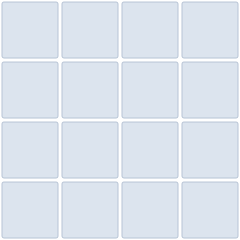 Grid · 16Use layout
 Heart · 1Use layout
 Heart · 4Use layout
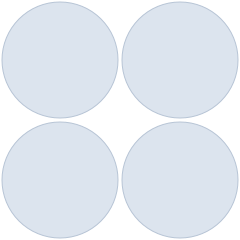 ● · 4Use layout
 ★ · 4Use layout
 ◆ · 4Use layout
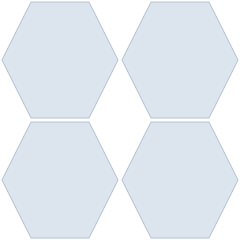 ⬡ · 4Use layout
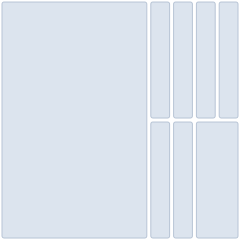 Big Photo Wrap · 8Use layout
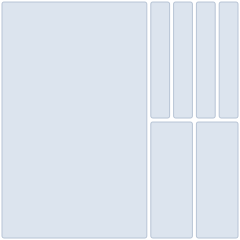 Magazine · 7Use layout
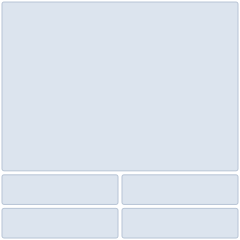 Photo Strip · 5Use layout
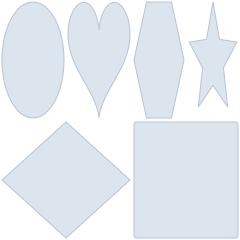 Mood Board · 6Use layout
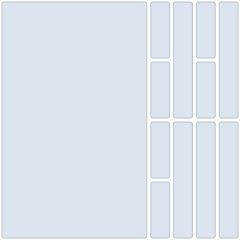 Big Photo Wrap · 12Use layout
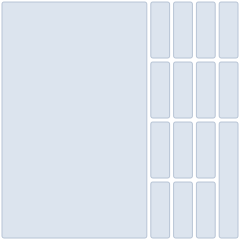 Big Photo Wrap · 16Use layout
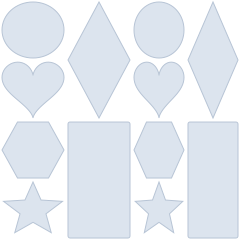 Mood Board · 12Use layout
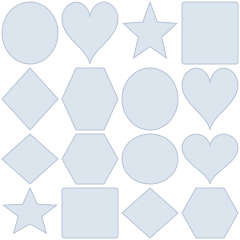 Mood Board · 16Use layout
Make a 12-photo collage without overcrowding it
Use the 12-photo grid when every picture needs equal space, or choose the big-photo arrangement to give one image more attention. For a travel recap, put your strongest landscape in the larger frame and use the smaller frames for details. Keep gaps consistent and check faces near frame edges before downloading. Fit keeps an entire photo visible; Fill covers the frame but can crop its edges.

Choose a grid or creative layout for 16 photos
A 4 by 4 grid works well for a contact sheet or a collection of product photos. The 16-photo big-photo and mixed-shape layouts offer a less uniform composition. Add your pictures together, then swap them between frames to balance light and dark areas. Small captions are harder to read in a busy collage: use a short title instead, and inspect the downloaded image at its intended viewing size.

Create a heart collage with a careful crop
Heart, circle, star, diamond and hexagon frames change the visible outline of a picture. They work best when the subject has some space around it. Start with the four-heart layout for a small collection, move each photo until the subject sits inside the shape, and reduce zoom if important details disappear. Choose a rectangular grid instead when you need to show every corner of a document, illustration or group photo.

The template is a starting point, not a limit
Drag dividers, split a frame, remove one you do not need, or change the balance between photos while keeping the composition tidy.

Fine-tune each photo inside the collage
Zoom and position a photo, rotate or flip it, then adjust brightness, contrast, saturation and blur without leaving the creator.

Set spacing, borders and backgrounds
Adjust gaps between photos, border width and rounded corners, then add text and shapes to the canvas.

From photos to a finished collage in four steps
-
1

Choose a layout
Select one of 38 arrangements or begin with a blank canvas.
-
2

Add your photos
Upload JPEG, PNG or WebP files from your device.
-
3

Customize
Arrange images, reshape frames and style the canvas.
-
4

Download
Export the final collage in your preferred supported format.
Make a collage with iPhone HEIC photos
Add HEIC or HEIF photos alongside JPEG, PNG and WebP images. Choose several files together, paste image files from your clipboard, or drop them into the editor. Each source photo can be up to 30 MB.
From camera photo to finished collage
Import your photos
Choose a layout, then add your images. A preparation message appears while each photo is decoded. Compatible browsers open HEIC directly; otherwise LoveMyFiles converts it into a PNG working copy on its own server.
Keep the whole picture visible
New frames use Fit so the full photo is visible. Use Fill when you prefer an edge-to-edge crop. Select a photo to reposition it, adjust zoom or rotate it; drag a divider to change the space available to the frame.
Download a shared image
Export the collage as JPG, PNG or WebP. HEIC is an input format, not a collage download format. JPG suits ordinary photo sharing; PNG or WebP can preserve a transparent canvas background.
What happens to HEIC uploads?
JPEG, PNG and WebP editing and collage exports run in your browser. If your browser cannot decode a HEIC or HEIF photo, that source is uploaded to the existing local conversion engine. Its private temporary workspace is removed after the conversion request. Keep your original: the PNG working copy is a still image, not a backup of every HEIC feature or embedded metadata.
Need a separate image instead?
Use a dedicated converter if you need an individual JPG or PNG rather than a combined collage. A damaged or unsupported photo can fail preparation without removing the other photos in your batch.
Convert HEIC to JPG Convert HEIC to PNG
Fit the whole photo or fill every edge
Switch between fit and fill for each frame, then zoom and reposition the image until the crop looks right.
Start blank when no template fits
Build a freeform composition with photos, text and shapes on a canvas sized for your idea.

Download as JPG, PNG or WebP
Choose the format that suits photos, transparent designs or efficient web sharing. Your export is created in the browser.

File processing and storage
Common formats stay in your browser. Advanced conversions are deleted from the server immediately.

Frequently asked questions
Clear answers about layouts, photo editing, privacy and downloads.
Is LoveMyFiles Photo Collage Maker free?
Yes. You can create and download a collage with the browser editor without purchasing a plan.
Do I need to create an account?
No account is required to start creating a collage.
Can I add more photos after choosing a template?
Yes. Add photos at any point and place them into available frames.
Can I resize individual collage sections?
Yes. Drag a divider between compatible sections to change their relative size.
Can I remove or add photo frames?
Yes. Split a selected frame to add space or remove a frame you no longer need.
Can I create my own collage layout?
Yes. Start with a blank canvas or reshape one of the included layouts.
What image formats can I upload?
The first release accepts JPEG / HEIC / HEIF, PNG and WebP images up to 30 MB each.
Can I use the collage maker on mobile?
Yes. The editor adapts its panels and controls for phones and tablets.
Can I create Instagram collages?
Yes. Square, portrait and story canvas sizes are available without using Instagram branding.
Can I edit photos inside my collage?
Yes. You can fit, fill, zoom, move, rotate, flip and apply supported adjustments to each photo.
Choose a starting layout for your photos
Choose a layout or start with a blank canvas. No account is required to begin.





Create for feeds, stories and banners
Start with square, portrait, story or wide canvas proportions and adjust the composition for where it will be shared.