Make a Wi-Fi QR Code for Guests Without Sharing Your Main Network
Create a guest Wi-Fi QR with supported network settings, understand exposed credentials and test joining the network before distributing the code.

A Wi-Fi QR saves guests from typing a network name and password. It also exposes those credentials to anybody who can read the code. Use a properly configured guest network rather than putting your main office or household network credentials on a public card.
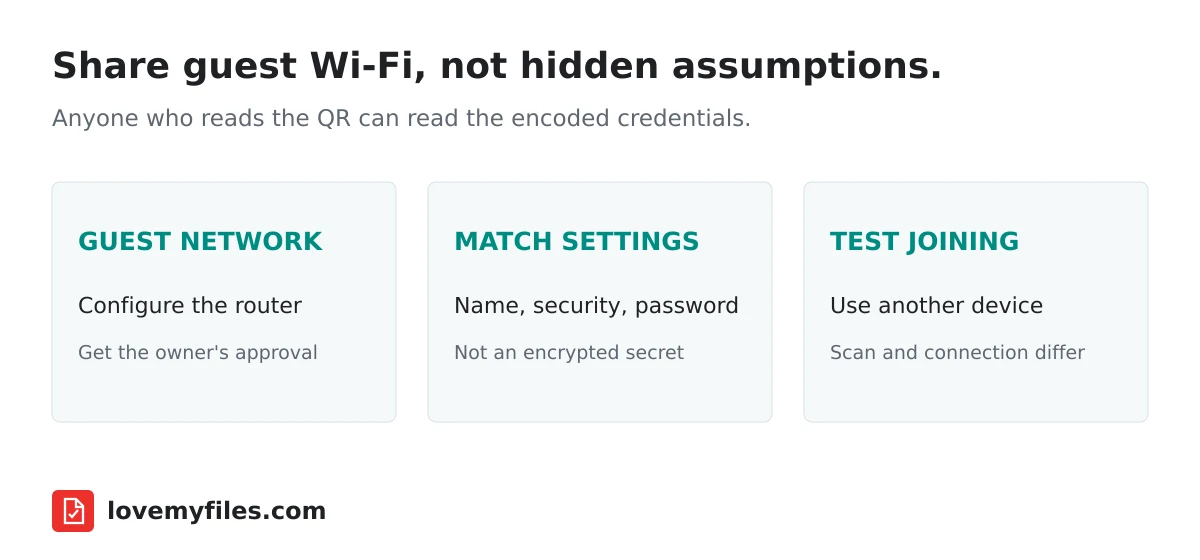
Configure the network before making the QR
A QR generator does not create a wireless network or configure your router. Start in your router's own administration interface and establish an appropriate guest network. Review its access settings using the manufacturer's instructions, particularly whether guests can reach other devices.
LoveMyFiles cannot determine whether your network is isolated or whether the password is appropriate. Those decisions belong to the person administering the network. A code that successfully connects a phone is not a security assessment of the router behind it.
For a workplace or shared venue, get approval from the network owner. Do not publish a password simply because somebody has supplied it for your own use.
Use the supported network settings
In LoveMyFiles QR Code Generator, select WiFi and enter the network name exactly. The current generator supports open networks, WPA/WPA2-Personal and legacy WEP payloads. It does not support enterprise Wi-Fi authentication.
Match the security choice to the network's actual configuration. The interface's ability to encode a legacy option is not a recommendation to use it. Selecting an unsupported or incorrect setting can produce a readable QR that does not connect successfully.
The network name is case-sensitive in this workflow and should be copied carefully. For WPA passwords, the current validator accepts 8–63 printable ASCII characters or a 64-digit hexadecimal key. If the generator rejects a value, review the supported input requirements rather than removing characters from a real password at random.
Understand what the QR contains
Wi-Fi codes use a structured payload containing the network name, security type and credentials. The ZXing barcode content specification documents this convention. It is not an encrypted password container merely because it is drawn as squares.
Anyone who photographs or decodes the card can obtain the encoded details. Keep it where the intended guests should have access, and assume copies can be retained. Removing a printed card later does not delete photographs already taken of it.
If the password changes, the old static QR still contains the old password. Generate and distribute a new version. A short URL is not a substitute for a Wi-Fi payload that a phone can use directly to join the network.
Treat hidden networks as a compatibility choice
LoveMyFiles includes a hidden-network setting. Use it only when it matches the actual network. A hidden SSID does not make the credentials inside the QR private, and it does not prevent somebody from reading the encoded network name.
Scanner and operating-system behaviour varies. Some cameras offer a join-network prompt; other scanners may simply display the payload. Test with the phones your guests actually use rather than promising that every device will connect automatically.
If the code decodes but joining fails, check the network name, security setting, password and signal before changing the QR design. Joining a network and recognising a barcode are different stages.
Test on a device that is not already connected
A phone already connected to the network can hide mistakes because it does not need the new code's credentials. Use another device or, where appropriate, forget the saved network before testing. Be careful not to disrupt a device that depends on its current connection.
Confirm the joining prompt and then confirm the intended internet access. If the network uses a captive portal, scanning the code does not remove that later sign-in or acceptance step. Explain the additional step clearly to guests.
For printed cards, preserve the code's clear margin and use a clean, high-contrast design. Follow the QR printing checklist for the physical proof, but do not confuse a successful scan with a completed network connection.
Keep the card maintainable
Keep a private record of who owns the guest network and where cards are displayed. When credentials change, replace the printed cards and any digital copies under your control. Do not leave old versions beside new ones without an explanation.
Offer a manual fallback for guests whose scanner does not handle Wi-Fi codes. Use the same approved guest credentials, and keep distribution within the audience the network owner intended.
Does a Wi-Fi QR encrypt the password?
No. People who can decode the QR can read its credentials.
Does the generator support enterprise Wi-Fi?
Not in the current implementation. Use the organisation's approved connection instructions instead.
Can I edit a printed Wi-Fi QR after changing the password?
No. Its encoded credentials stay unchanged. Make a new code and replace distributed versions where possible.
Try a related tool
Free QR Code GeneratorRelated Guides
QR Code Printing Checklist: Margin, Export and Scan Testing
Prepare a QR code for print: verify the destination, preserve its clear margin, choose an export and scan a proof at the final size before distributing it.

Why Short-Link Clicks and Website Visits Do Not Match
Investigate short-link clicks versus website visits by checking dates, metrics, redirects, campaign parameters and destination changes without guessing the cause.
How to Shorten a URL, Add UTM Tracking and Create a QR Code
Build a manageable campaign link with LoveMyFiles: choose an address, add UTM tags, download a QR code, set expiry and read click analytics carefully.

A Practical UTM Naming Plan for Short Links and QR Campaigns
Separate campaign source, medium and name. Build consistent tagged destinations, check short-link redirects and avoid putting personal information in URLs.