QR Code Printing Checklist: Margin, Export and Scan Testing
Prepare a QR code for print: verify the destination, preserve its clear margin, choose an export and scan a proof at the final size before distributing it.
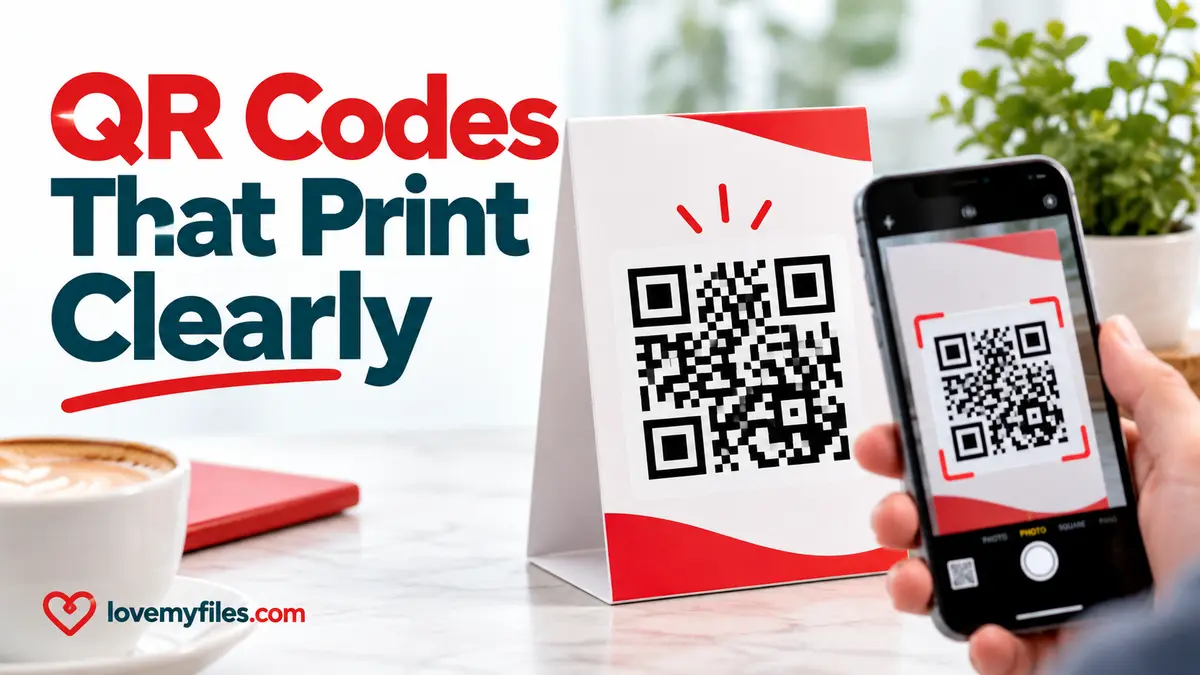
Before printing a QR code, check the destination, keep a clear margin around the code and test the actual printed size. A code that scans from a large computer preview can still fail on a small label. Create the code with LoveMyFiles QR Code Generator, then treat export and print testing as part of the same task.
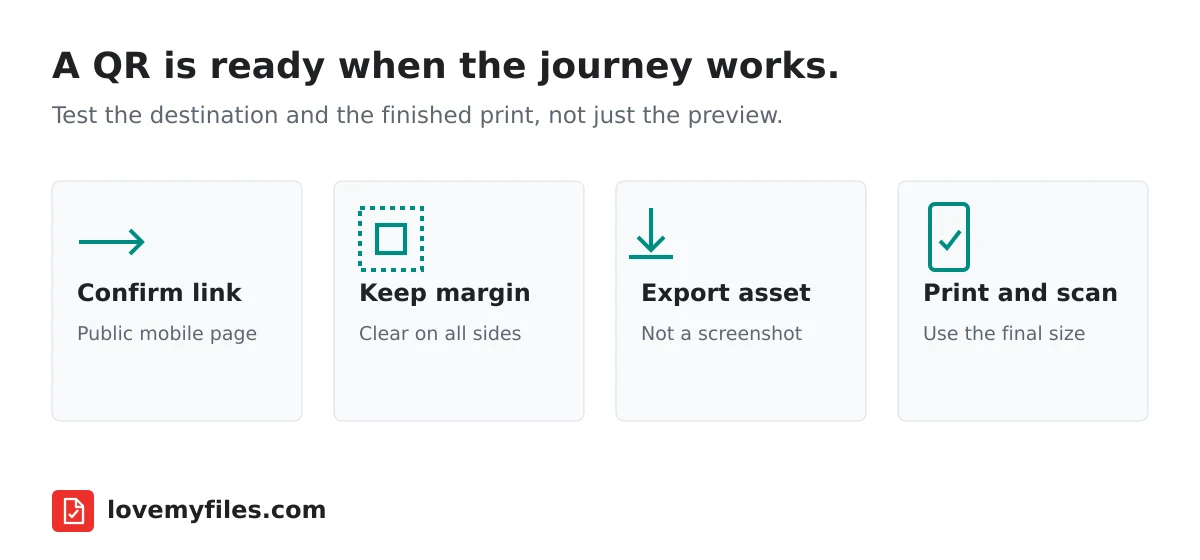
Confirm the destination before styling
Open the exact URL you intend to encode. Check it on a phone without relying on your existing account session. If a menu, registration page or document requires a login, the QR does not remove that requirement. The code also does not upload or host a file on your behalf.
Check the spelling, HTTPS address and final page. Avoid encoding a temporary preview or a private editing link. A QR can be technically readable while sending people to the wrong place; scan reliability and destination correctness are separate checks.
Decide whether the destination will need to change after printing. A static QR encodes its content directly. Printing it does not create a control panel that can later rewrite those printed squares. A managed short link can provide an intermediate address whose destination can be edited, but that introduces a redirect service that must remain available. Use URL Shortener only when that extra dependency is useful.
Leave the quiet zone alone
The blank border surrounding a QR is called its quiet zone. It separates the code from nearby artwork. DENSO WAVE's QR guidance specifies a clear margin four modules wide on every side. A module is one of the small squares in the code, not a fixed millimetre measurement.
LoveMyFiles keeps the margin setting at a minimum of four modules. Do not crop that border away after downloading the image, and do not place a coloured illustration, photograph or busy pattern immediately against it. The margin is functional space, not unnecessary padding.
If a layout feels cramped, give the QR more room in the design rather than shrinking its border. A clean label can include a short explanation outside the clear area, such as the purpose of the destination. Make sure the explanation does not intrude into the code or its margin.
Avoid a universal minimum-size rule
A simple URL and a long payload can produce different numbers of modules. At the same printed width, the denser code has smaller individual squares. Printing distance, camera focus, material and lighting also affect the result. There is no single physical size that is right for every poster, sticker and business card.
Choose a practical size for the viewing distance and inspect a proof at that size. A countertop card that somebody holds near their phone is different from signage viewed across a room. If the payload is long, consider whether a shorter address would make the code easier to place without hiding its purpose from the reader.
LoveMyFiles flags unusually long payloads because dense codes can become harder to scan when small. That warning does not mean a short link is mandatory; it means the content and physical layout should be considered together.
Use contrast before decoration
A dark code on a light, plain background is a dependable starting point. Avoid combinations where the foreground and background look similar in brightness, especially after printing. A colour that appears distinct on a backlit screen may not provide the same contrast on paper.
Logos, rounded styling and other design changes deserve extra testing. Error correction helps a QR tolerate some damage; it does not guarantee that any logo size or decorative treatment will scan. For an important production run, keep the design conservative and use the actual phones and conditions that matter to the audience.
If a styled code scans inconsistently, test a plain version with the same destination. Changing only the design helps you find whether the styling is causing the problem.
Choose an export that fits the print workflow
LoveMyFiles offers PNG download, while other export formats require a free account. SVG is useful when the design application accepts vector artwork because it can scale without becoming a blurry bitmap. PNG can also work when its pixel dimensions are sufficient for the intended print size.
Avoid using a screenshot as the production asset. A screenshot may include interface elements, introduce scaling or cut off the quiet zone. Download the QR itself and place that file into the artwork. Maintain its square proportions; stretching it into a rectangle is not a substitute for fitting the layout properly.
Ask the printer which format is appropriate for the document they will receive. If you place the code into a larger PDF, inspect the exported PDF too. The QR asset can be correct while a later document export downsamples it or crops its border.
Test a physical proof, not just the preview
Print one copy at the intended size before committing to a batch. Scan it with more than one phone if possible, using the ordinary camera experience the audience is likely to use. Test under realistic lighting and from a natural distance rather than only with the camera held perfectly still.
Check that the correct destination opens, that it works without your login and that important actions on that destination remain usable on mobile. A successful scan leading to a broken form is still an unsuccessful user journey.
For curved packaging, glossy material or outdoor signage, test the finished surface rather than a flat office-paper approximation alone. Glare, folds and curvature can change the result. Keep a spare digital copy of the exported asset and a record of the approved destination so future reprints use the right version.
Keep a fallback people can understand
Where space permits, include a readable web address or another contact route outside the quiet zone. Not every reader can or wants to scan a QR. A fallback also helps when a camera has difficulty focusing or connectivity is poor.
If the QR uses a managed redirect, maintain the link after the material is distributed. Review its expiry and destination before reprints. Changing the website behind a static URL can also affect what scanners see, even though the printed code itself is unchanged.
Can I remove the white border to make the QR look smaller?
Do not crop the required clear margin. Give the code more space or simplify the surrounding layout instead.
Can I change a printed static QR later?
You cannot rewrite its encoded content. If it contains a managed short URL, you may be able to change that link's destination through its owner controls.
Does one successful scan prove the whole print run will work?
No. Test the final size, material and destination. A large on-screen preview is not the same as the finished print.
Try a related tool
Free QR Code GeneratorRelated Guides

Why Short-Link Clicks and Website Visits Do Not Match
Investigate short-link clicks versus website visits by checking dates, metrics, redirects, campaign parameters and destination changes without guessing the cause.
How to Shorten a URL, Add UTM Tracking and Create a QR Code
Build a manageable campaign link with LoveMyFiles: choose an address, add UTM tags, download a QR code, set expiry and read click analytics carefully.

A Practical UTM Naming Plan for Short Links and QR Campaigns
Separate campaign source, medium and name. Build consistent tagged destinations, check short-link redirects and avoid putting personal information in URLs.
Build an Event Sharing Kit with PDFs, Images, Short Links and QR
Prepare an event PDF, screen images, a managed link and a printable QR. Check privacy, file quality and the complete visitor journey before sharing.