Why Won't My iPhone Photo Upload? Fix HEIC, JPG & File-Size Errors
If a form rejects your iPhone photo, check its accepted formats, file size and pixel dimensions. Convert HEIC only when needed, then compress or resize the compatible copy and reopen it before uploading.
iPhone Photo Won't Upload? Try This
- Check whether the website accepts HEIC/HEIF.
- If it only accepts JPG/JPEG or PNG, convert a copy of the photo.
- Check the upload file-size limit and any pixel-dimension requirements.
- If the compatible JPG is still too large, compress the image.
- Reopen the final file, check its appearance and upload that copy.
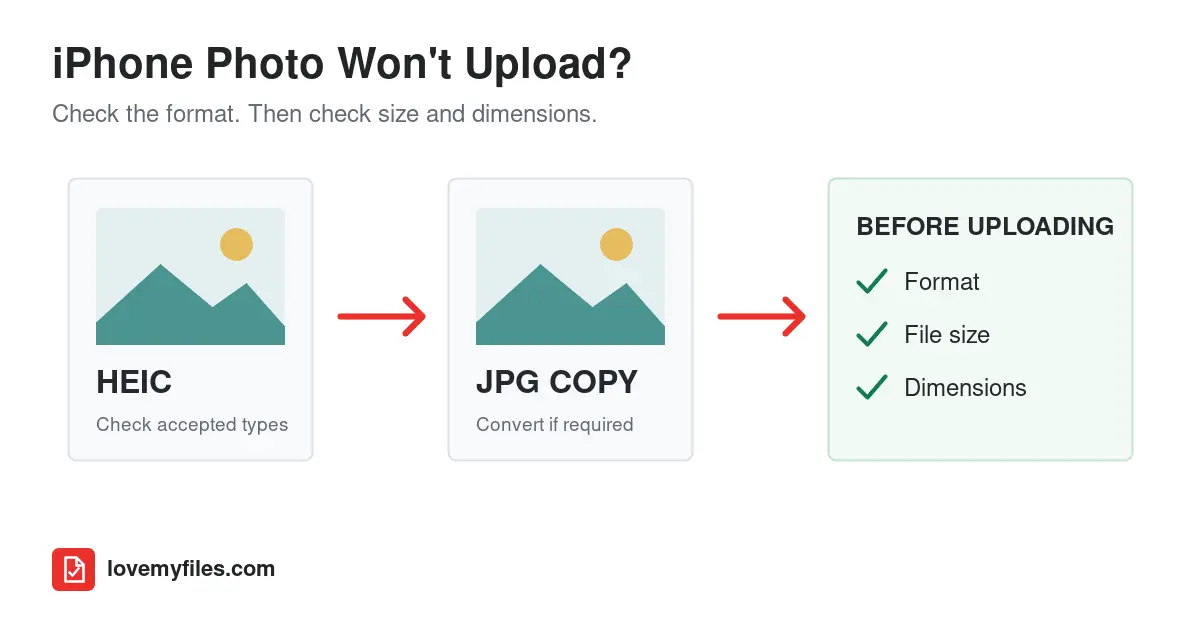
Why Won't My iPhone Photo Upload?
A photo that opens on your iPhone can still be rejected by an online form. The form might not accept its format, or it might enforce a separate limit on file size or pixel dimensions. A damaged export, an interrupted connection or an expired application session can also cause a failure. Not every upload problem is a HEIC problem, and some websites accept HEIC without conversion.
Start with the message beside the upload field. "Unsupported file type" calls for a different fix from "File too large." If there is no specific error, record the accepted formats, maximum size and required dimensions before trying again. Keep the original photo and prepare a separate copy for that destination.
What Is HEIC and Why Do iPhones Use It?
HEIF is a format for storing images efficiently. HEIC is a related filename extension commonly seen on iPhone photos. You may encounter a .heic photo even when a guide or application calls the format HEIF. For this upload problem, the useful question is whether the receiving website can read that file.
Apple uses high-efficiency formats to conserve storage while retaining photo quality. Its official HEIF guidance explains the supported capture settings. That efficiency does not require every application form to support the same format. Keep the original for your photo library; make a compatible copy when a destination needs one.
Does the Website Support HEIC?
Read the instructions around the file picker. An example such as "Accepted file types: JPG, JPEG, PNG" means you should choose one of those formats; do not assume a HEIC is accepted because it looks like a photo in your phone's gallery. Other forms accept PDF attachments, but a PDF-only document field is not the same as an image-upload field.
If the website explicitly accepts HEIC and your file satisfies its other requirements, conversion may be unnecessary. If it lists only JPG/JPEG or PNG, convert a copy. Where the instructions are unclear, check the site's help or support rather than repeatedly changing the same photo.
JPG and JPEG are filename extensions for the same image format. Renaming photo.heic to photo.jpg does not change the encoded image. It can make the filename look acceptable while leaving the actual file unreadable to the form. Use a converter that decodes the source and writes a new image.
How to Convert an iPhone HEIC Photo to JPG
LoveMyFiles has a dedicated HEIC to JPG converter, with HEIC and JPG already selected. It uses the shared Image Converter engine. Add the photos through the file picker or drop area and follow the displayed batch and file-size limits. HEIC decoding runs on the LoveMyFiles server, not solely inside your browser.
- Keep the original and select the
.heicfile in the converter. You can also drop it into the upload area on a device that supports dragging files. - Check that the destination format is JPG. The dedicated page starts with that choice.
- Let the conversion finish and download the JPG result.
- Open the downloaded copy, not the original selected in your photo library. Check its orientation, appearance and any small text.
- Check the new file's size and dimensions against the receiving form before uploading it.
For a .heif file, use the general Image Converter, which includes HEIF input and JPG output. If the form requests PNG instead, use the existing HEIC to PNG tool. PNG is not automatically the smaller choice for a photograph.
The converter produces a separate image; it does not overwrite the original on your phone. The ordinary JPG output is not an archival copy of every HEIC property. HDR or wide-gamut colors may appear different, so compare the copy in the app where it will be used and retain the original when those details matter.
Converted to JPG but Still Won't Upload?
Conversion fixes a format mismatch. It does not guarantee that the JPG will fit the portal's file-size limit. A detailed iPhone photo can remain several megabytes after conversion, and a JPG can be larger than the efficiently encoded HEIC source.
Think of this as two separate checks: HEIC to JPG makes a JPEG copy; checking size tells you whether that copy is small enough. If the form now recognizes the image but says it is too large, use image compression rather than converting it again and again.
Also check which file you actually selected. Downloads and your photo library can contain similar-looking originals and converted copies. Look at the filename, saved format and size. If the error says dimensions are too large, reduce pixel dimensions; lowering JPEG quality alone does not change the width and height.
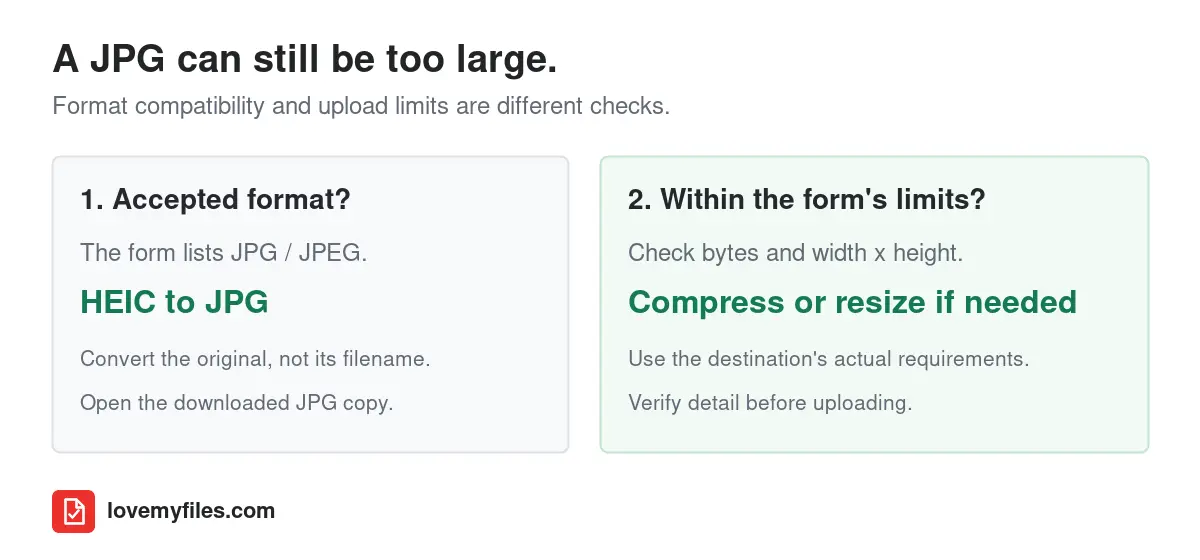
Format, file size and dimensions are separate requirements. Passing one does not guarantee the other two.
How to Reduce an iPhone Photo's File Size
After conversion, open Compress Image with the saved JPG. Compatible JPG, PNG and WebP files normally use browser compression; oversized supported JPEGs can use the server path instead. That is different from the server-decoding step used for HEIC.
Choose a moderate quality setting first if the portal gives no exact target. Preview the result and compare small details before using stronger compression. For a photo of a document, names, numbers and fine print matter more than obtaining the smallest possible file. Keep the original if the optimized copy becomes unsuitable.
Use the existing target-KB control
LoveMyFiles already includes a target-size mode; no separate tool is needed. Choose Target size in the compression settings, then enter the required ceiling in Maximum size (KB). For example, use 500 when preparing a copy for a displayed 500 KB limit.
The search adjusts encoding quality. If necessary, Allow smaller dimensions to reach the size limit also permits the tool to reduce width and height. Leave that option off when the form requires fixed dimensions, or check the resulting dimensions carefully. Do not let automatic reduction take a required photograph below the portal's minimum resolution.
An entered target is not a universal guarantee. The tool has bounded attempts and can report a result that does not meet the target. Check the achieved size in the result and the actual downloaded file. If the image is already small enough, further compression may be unnecessary.
The KB setting uses 1,024 bytes per KB. A website may interpret its displayed MB or KB limit differently or round a value. Near a boundary, use a slightly lower ceiling where practical and check the form's actual acceptance instead of treating a rounded label as exact proof.
How to Make an iPhone Photo Under 5MB, 2MB, 1MB or 500KB
There is no universal upload limit. Always follow the limit shown by the website or application form.
The targets below are examples of destination requirements, not measured LoveMyFiles results or limits shared by every job, school or government portal. The amount of detail in the photo affects what reduction is possible.
| Upload target | Suggested approach |
|---|---|
| Under 5 MB | Try moderate JPG compression and check the saved copy; it may already be small enough. |
| Under 2 MB | Compress the JPG. If necessary, reduce dimensions that are larger than the destination requires. |
| Under 1 MB | Use target-size settings, compare fine details and consider a smaller-resolution copy when allowed. |
| Under 500 KB | Quality reduction alone may not suffice. Reduce dimensions only if the form permits them and inspect readability. |
For MB limits, consult the portal's instructions before converting that ceiling into the tool's KB field. Leave a little margin when its units or rounding are unclear. Always verify two things after processing: the copy meets the size limit, and it still contains enough detail for its purpose.
Do not remove required content or make identification details illegible just to reduce bytes. If a form's minimum dimensions and maximum size cannot both be met with a readable copy, seek the portal's guidance. A file that uploads but cannot be read is not a successful fix.
Image Dimensions vs File Size: What's the Difference?
Dimensions describe width and height in pixels. File size describes how many bytes the saved image occupies. A picture measuring 4000 x 3000 pixels does not automatically occupy 4 MB. Those numbers are an illustration of different units, not a conversion formula.
Two images with the same pixel dimensions can have different file sizes because their format, compression quality and picture content differ. Lowering JPEG quality changes how the image is encoded; resizing reduces the number of pixels. Either can affect file size, but they solve different restrictions.
If the form says "Maximum 2000 x 2000 pixels," use Resize Image to prepare a copy within those bounds. Preserve the aspect ratio unless the form specifically requires a crop, and check any minimum dimensions too. A portrait image need not become square just because both maximum dimensions are 2000.
If the form says "Maximum 2 MB," measure the file's storage size. Resizing may help, but a dimension change alone does not certify that byte limit. Conversely, a compact image can still exceed a pixel-dimension rule. Reopen the final file and verify both properties.
Common iPhone Photo Upload Errors and What They Mean
Error messages are clues, not complete diagnoses. The same vague wording can mean different things on different websites. Use the portal's specific requirements and the actual file to decide what to change.
| Error or symptom | Possible cause | What to try |
|---|---|---|
| Unsupported file type | HEIC/HEIF or another format is not accepted. | Check the format list; convert to the requested JPG or PNG. |
| File too large | The saved image exceeds that field's ceiling. | Compress the compatible copy and check its downloaded size. |
| Maximum dimensions exceeded | Width or height exceeds the stated pixel bounds. | Resize while preserving the required proportions and minimum dimensions. |
| Invalid image | The file may be damaged, incomplete or encoded in an unsupported format. | Reopen it; obtain a complete original or export a fresh supported copy. |
| Upload failed | A connection, session or form-validation problem may be involved. | Save your form answers, check the file and retry within the portal's guidance. |
| The renamed JPG is rejected | Its extension changed, but the encoded contents did not. | Convert the original instead of renaming it. |
| The wrong photo appears | A similar-looking original or earlier copy was selected. | Check the downloaded filename and use the intended reviewed version. |
If the file satisfies the stated format, size and dimension rules but still fails, check the connection and whether you are still signed in to the destination. Save entered answers before reloading an application page. Try a current browser supported by the site, or ask its support team with the exact error, file format, size and attempt time.
For an incomplete export, obtain a complete file that opens normally before converting it. Repeatedly compressing a broken file will not reconstruct missing photo data. Avoid posting identity photos, application attachments or private documents in a public troubleshooting discussion.
How to Stop Future iPhone Photos From Saving as HEIC
On supported iPhones, Apple's documented capture setting is Settings > Camera > Formats > Most Compatible. New photos then use JPEG. Choose High Efficiency to return to high-efficiency capture. See Apple's current capture-format instructions for device availability.
This changes future capture, not the format of photos already in your library. An existing HEIC still needs a compatible export when a particular form requires JPG. A newly captured JPEG can also exceed a size or dimension limit, so the setting is not a general cure for every upload failure.
You do not need to change your camera settings solely for one form. Keeping your preferred capture format and converting a submission copy may be more convenient. Decide based on where you regularly use your photographs rather than assuming HEIC itself is faulty.
When You Should Keep HEIC Instead of Converting It
Keep the original when the receiving app accepts it and there is no other reason to convert. It is also useful to retain the source for future edits or when original HDR/color information matters. A JPG copy made for compatibility is not a replacement for every use of the source image.
Use the destination's required format for the upload copy. Do not choose PNG solely because its name sounds higher quality: a detailed PNG photograph can be much larger. Avoid repeated re-encoding of an already compressed JPG; return to the original when preparing another version.
iPhone Photo Upload Checklist
Before returning to the form, check the actual final file:
- The format is explicitly accepted by the destination.
- The downloaded file is within its maximum size, not just a rounded estimate.
- Width, height, aspect ratio and any minimum resolution meet the instructions.
- The image opens normally and has the correct orientation.
- Important details remain legible after conversion and compression.
- The filename identifies the correct copy and follows any naming rules.
- The required subject/content remains present; no essential details were cropped out.
- The attachment preview shows the intended photo, if the portal provides one.
- The unchanged original is retained for another export if necessary.
For tighter photo limits such as 20 KB or 100 KB, the related photo-size guide below covers those smaller targets. This article focuses on the iPhone format-to-upload workflow rather than treating every image-size problem as the same task.
Frequently asked questions
Why does my iPhone photo open on the phone but not upload?
The phone can read a format that the website may not accept. File-size limits, dimensions, an incomplete export or a session problem can also be responsible. Check the specific error and the field's instructions first.
Can I just rename HEIC to JPG?
No. Changing the extension does not change the image data. Convert the original into a real JPG, download it and reopen it before using the copy.
Is HEIF the same thing as HEIC?
They are related: HEIF names the image format family, while HEIC is a common extension for iPhone files in that family. Use the general Image Converter for a supported .heif input; the dedicated HEIC page is preset for .heic.
Why is my converted JPG still too large?
Changing the format does not enforce the portal's byte limit. The resulting photo may still contain many pixels or detailed image data. Compress the JPG, or resize it when the form allows smaller dimensions.
Can LoveMyFiles compress a photo to 500 KB?
The existing Target size mode accepts a 500 KB ceiling and searches for a suitable result. It may need smaller dimensions, and not every image can meet the target suitably. Check the achieved size and visible detail before submitting.
Does lowering JPEG quality reduce the pixel dimensions?
Not by itself. Quality affects encoding; resizing changes width and height. The compressor can optionally allow dimension reduction for target-size work, so check that setting and the final dimensions.
Should I convert an iPhone photo to JPG or PNG?
Follow the form's accepted formats. JPG is a useful option for ordinary photographs where JPEG is accepted. PNG can be appropriate when required, but it is not a guarantee of a smaller file or preserved HEIC HDR information.
Will Most Compatible convert my old iPhone photos?
No. The camera setting applies to new captures. Export or convert an existing HEIC separately when a destination requires another format.
Is every iPhone photo a HEIC?
No. Capture settings, the source of the image and export/sharing choices can produce other formats. Inspect the actual file rather than assuming its format from the device name.
What if a JPG within the limit still fails?
Check dimensions, accepted format, file integrity and the selected filename. If these are correct, follow the portal's advice about browser support, connection and session expiry, or contact its support with the exact error.
Is HEIC conversion entirely inside my browser?
No. LoveMyFiles uses its own server to decode HEIC. Compatible JPG/PNG/WebP compression normally runs in the browser, with a server path for supported oversized JPEGs. These are different processing paths; keep your original regardless of which copy you prepare.
Can I use a screenshot instead?
A screenshot may lose detail, change dimensions or omit part of the photo. It is not a reliable substitute for an approved image upload. Prepare a supported export and check the requirements instead.
Check location information before sharing
Format conversion and upload-size preparation are not privacy checks. If the photo will be shared outside a trusted group, inspect and remove photo location metadata from the final copy, then check the visible picture and filename too.
Try a related tool
Turn an iPhone HEIC photo into a JPEG for forms, email and older software. The local server reads HEIC, corrects its stored orientation and removes embedded metadata.
HEIC to JPGRelated Guides
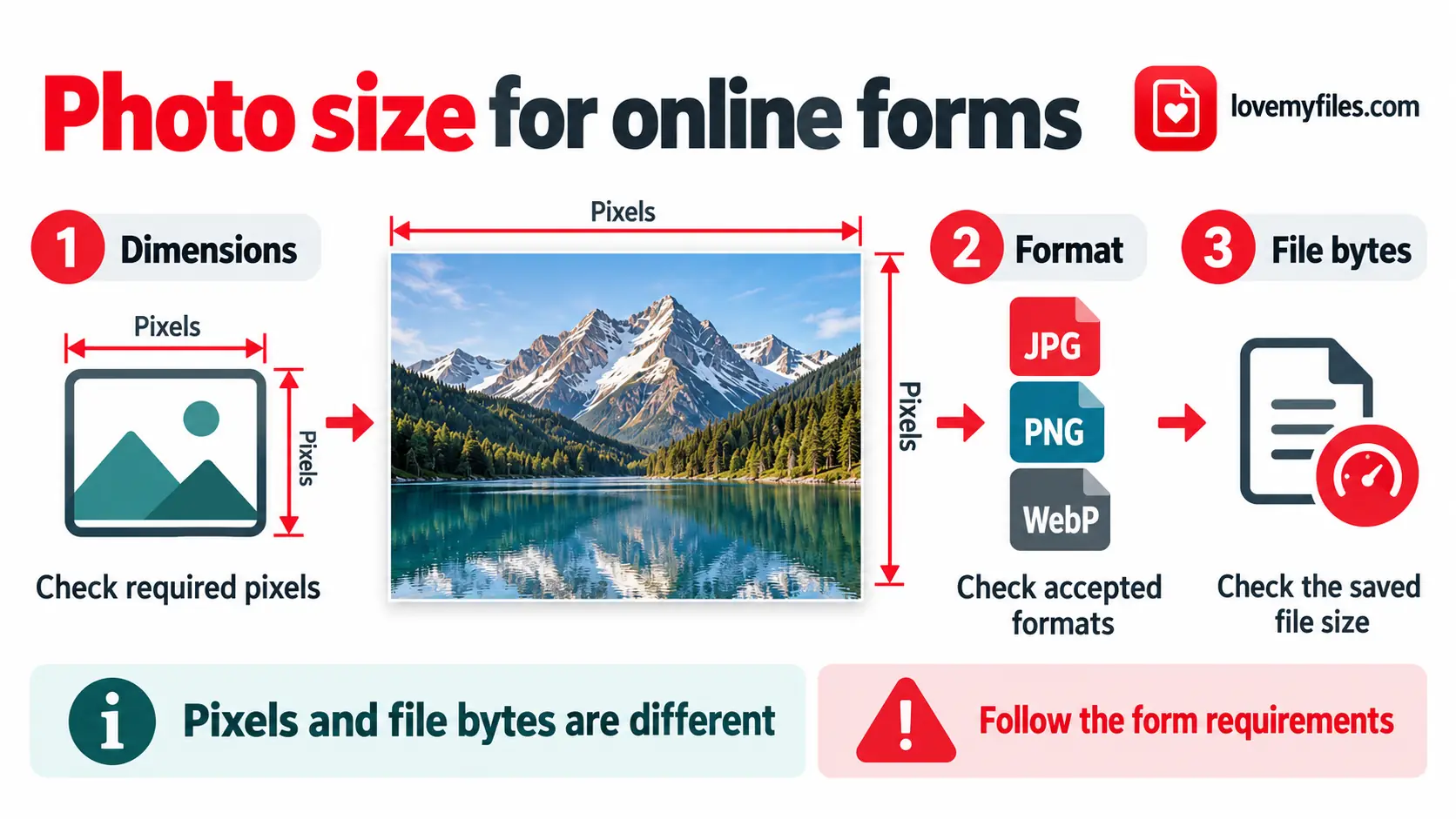
How to Reduce Photo Size to 20KB, 50KB, 100KB or 200KB
Match a photo's dimensions, format and file size to an upload form using resize, conversion and target-size compression.
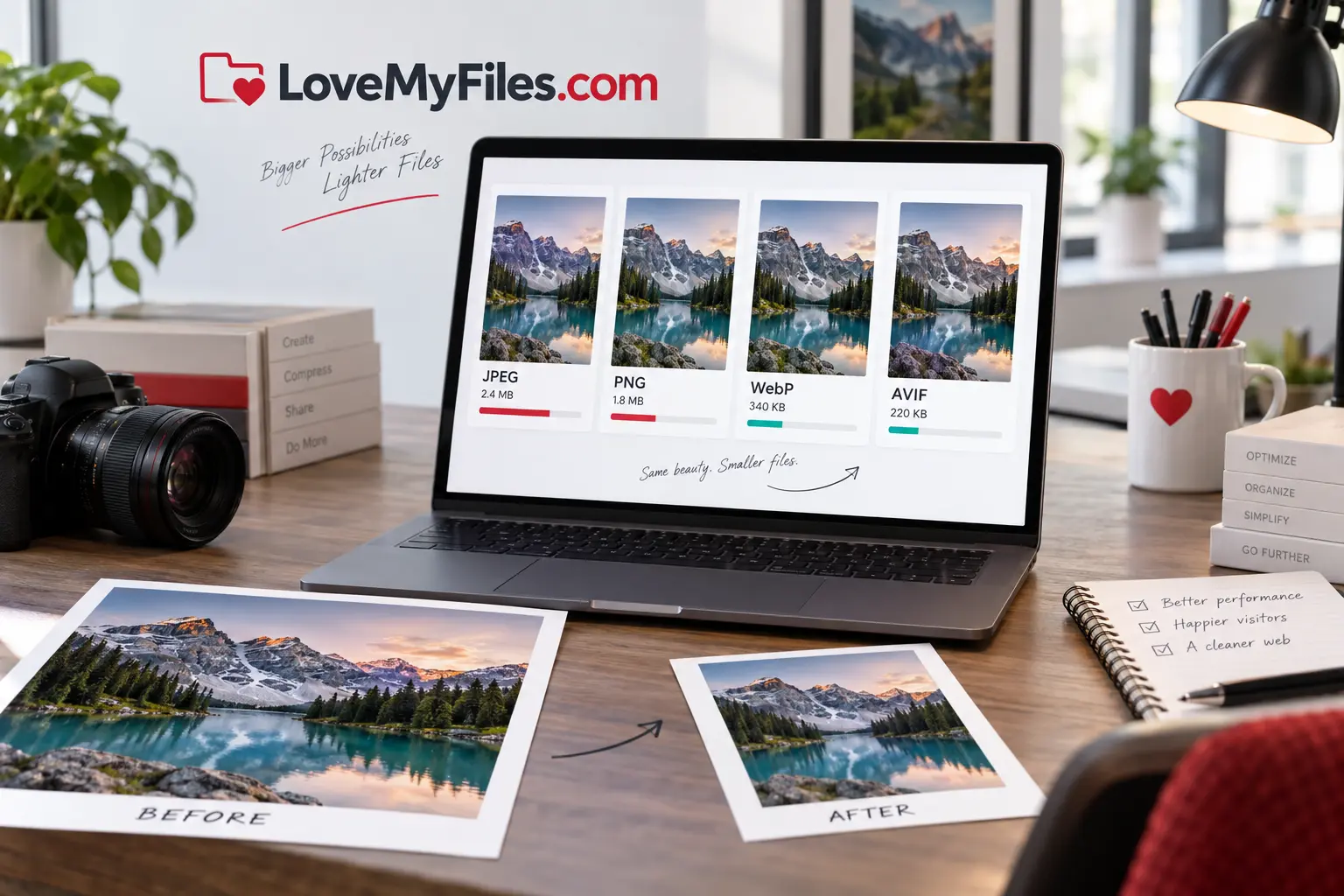
Image Optimization Guide: JPEG, PNG, WebP or AVIF?
Choose the right image format, dimensions and compression settings for faster websites, email and reliable uploads.

Build an Event Sharing Kit with PDFs, Images, Short Links and QR
Prepare an event PDF, screen images, a managed link and a printable QR. Check privacy, file quality and the complete visitor journey before sharing.
Compress a Large Print JPEG for Sharing: Pixels, Size and Colour
Prepare a lighter sharing copy of large JPEG artwork. Understand pixel limits, colour conversion, target size and why you should keep the print master.