How to Convert WebP to JPG and Choose the Right Background
Convert a WebP to JPG with the actual Image Converter controls, then check transparency, quality, dimensions and file size.
To convert a WebP to JPG, open the free Image Converter on LoveMyFiles.com, choose JPG as the output, set the background and quality, then select the WebP. Conversion starts automatically. Download the result and inspect it before using it in a form, document or other application.
The main tradeoff is transparency: a JPG cannot keep a transparent background. In this tool's browser conversion, transparent areas are combined with the solid Background color you choose. JPG output also uses lossy encoding, so conversion is not a promise of unchanged pixels or a smaller file.
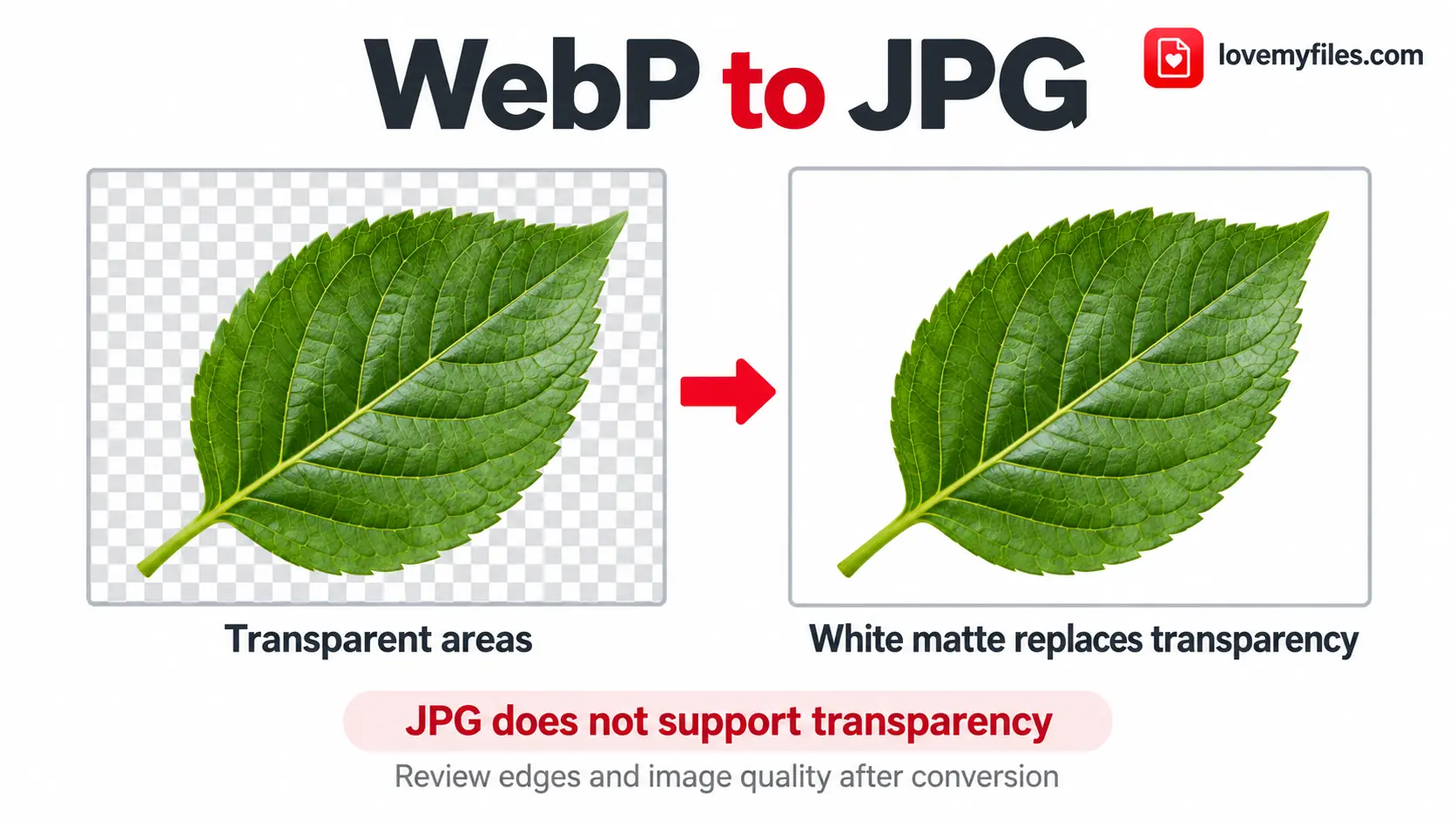
Illustration: JPEG does not support transparency. Review the selected background and the subject's edges after conversion.
LoveMyFiles.com brings free online PDF and image tools together. This guide focuses on a particular conversion and its consequences; the existing image optimization guide covers broader format selection.
Decide whether JPG solves the problem
Choose JPG when the receiving form or application requires it, or when you need an ordinary opaque photograph for that workflow. If the recipient already accepts WebP and the file works, conversion may be unnecessary.
WebP can contain lossy or lossless image data, transparency, animation and metadata. Those are format capabilities, not features every converter preserves. Google's WebP specification describes them.
| Your source and destination | Practical decision | What to check |
|---|---|---|
| An opaque WebP photograph for a JPG-only upload | Convert to JPG | Quality, dimensions and the upload byte limit |
| A transparent cutout placed on a fixed background | Choose the final background before converting | Fine edges and the rectangle around the subject |
| A logo that must work on several background colors | Keep a source with transparency | Do not use the JPG as the editable master |
| An animated WebP | Keep the original for playback | A JPG download is a still image |
| A WebP that already works at the destination | Keep it unless there is another requirement | Avoid an unnecessary lossy export |
Changing the filename from .webp to .jpg does not change the encoded image. Conversion creates a new file that the receiving program can decode as JPEG.
Convert WebP to JPG with the actual controls
Choose the output before selecting the file
- Open Image Converter. Let the controls load.
- In From, choose WEBP, or leave Automatic selected if the file has its correct original extension.
- In To, choose JPG. JPG and JPEG refer to the same output encoding in this workflow.
- Set Quality. The browser control starts at 90; use it as a starting point for comparison, not as a guarantee of a particular appearance.
- Choose Background, especially for a transparent source. The default is white.
- Leave Resize while converting unchecked if you want to retain the source dimensions. If you need a smaller proportional copy, enable it, enter Width or Height, and leave the other blank.
- Select, drop or paste the WebP. Accepted files begin converting automatically with the selected settings.
- Select Download for the result. Open the saved JPG and check the background, detail, orientation, dimensions and file size.
Choose the destination size from its requirements rather than from a generic JPG preset. Entering both resize dimensions with different proportions can add margins in the browser conversion, so check the finished framing.
Retry from the original WebP
If the background or quality needs changing, adjust the controls, use Choose other images, and select the original WebP again. The new conversion uses those settings. Changing a control alone does not regenerate a completed download.
Keep the source until the output is accepted. Using a previously converted JPG as the next input adds another lossy export without recovering anything already discarded.
Understand what happens to transparent areas
Transparency lets the background behind an image show through. A partially transparent edge, such as hair or a soft shadow, blends with that background. Ordinary JPEG has no alpha channel, while PNG can carry one. MDN's format guide documents the distinction.
For a WebP cutout intended for a white form, choosing white creates an opaque JPG suitable for that background. On a colored page, that same JPG can show a visible white rectangle. If the final placement has a fixed color, choose that color before converting and test the output in the placement itself.
Semi-transparent edges deserve particular attention. A shadow blended onto white will not look the same on a dark background. An existing light fringe in the source may remain visible even after you choose a darker color. Background selection cannot reconstruct missing edge information.
Once the transparent areas have been flattened into a JPG, switching that JPG to PNG does not bring the transparency back. Retain the WebP or another original with alpha for future edits.
Current LoveMyFiles limitation: the browser converter paints the selected background before encoding even when PNG or WebP is chosen as the output. Selecting PNG here is therefore not a transparency-preserving workaround. Keep the transparent original, or use a workflow that explicitly preserves alpha and verify its output.
Check quality, size and information changes
Quality 100 is still an encoder setting
The slider does not state how much original detail will survive. Higher quality can reduce visible compression damage while increasing file size, but it cannot recover detail that was already lost in the source. The browser canvas API applies quality settings to lossy output formats. MDN explains the export behavior.
Compare the result at its intended viewing size and at 100% zoom. Look at faces, fine patterns, small text, product edges and gradients. If necessary, return to the WebP and try a higher setting. Do not assume the same slider number creates identical results in every browser.
The JPG can be larger than the WebP
Conversion changes the encoding; it does not guarantee savings. A high-quality JPG can exceed the source WebP's size. Large dimensions can also leave the JPG above a receiving form's limit.
Use Resize Image when the destination allows smaller dimensions. Use Compress Image when the dimensions are correct but bytes remain too high. Check quality again after compression. Keep a suitable working copy so later attempts do not repeatedly compress the last download.
Animation and metadata need the original
This conversion creates a still image, not a moving JPG. It does not preserve animated playback from a WebP. If movement matters, keep the animation in a format accepted by the destination.
The browser workflow decodes the source, draws a bitmap and exports a new image. It does not copy the original metadata container into the JPG. Keep the source when camera information, attribution or other embedded information matters, and inspect orientation and color in the finished file.
Troubleshoot the converted JPG
The background is white when I expected transparency
That is the JPG tradeoff. White is the default browser background. Start again from the WebP with a deliberate color choice if a different fixed background is required. If transparency itself is essential, use the original transparent asset instead of JPG.
The cutout has a pale or dark outline
Review the WebP edge against the intended background. The source may already contain a fringe, or partially transparent pixels may now be visibly blended into the chosen color. Retry from the original with the correct background; simply re-encoding the same JPG cannot recover the original alpha.
The selected settings did not change the result
Conversion starts when the file is added. Set the output and controls first, then reselect the original using Choose other images. Check that the download you opened is the new result.
The interface reports server processing
Browser encoder availability affects routing. WebP-to-JPG can run in a capable browser; an unavailable encoder can send conversion to the LoveMyFiles server. The current server request includes the chosen quality, background and optional resize settings. Inspect the saved result because browser and server encoders can produce different sizes or edge appearance. Do not assume every format stays on your device.
The file is still too large or the form rejects it
Check the actual byte size, the required dimensions and the allowed extension. Confirm that the final file is the downloaded JPG, not the original WebP or a renamed copy. If a target compression result exceeds the limit, revisit permitted dimensions and quality rather than treating the target field as proof of acceptance.
Related LoveMyFiles.com workflows
For an image that must become a document, use JPG to PDF after inspecting the JPG. If you then need to revise an existing PDF, the English guide to editing a PDF without losing formatting explains the layout checks that follow.
Keep file preparation separate from format selection: resize for the required geometry, compress for a byte limit, and convert when the destination requires another image type.
Frequently asked questions
Can I make a transparent JPG from a WebP?
No. JPG does not retain alpha transparency. Choose a solid background or keep an asset with transparency for a workflow that needs it.
Is renaming WebP to JPG enough?
No. The encoded file remains WebP. Use a converter and verify the downloaded JPEG rather than changing only the filename.
Does Quality 100 mean no quality loss?
No. It is an encoding setting, not a lossless-conversion promise. Keep the original and compare the output visually.
Why is the JPG larger than the WebP?
The source encoding, dimensions and chosen JPG quality affect the result. Compatibility can require a larger file; conversion is not inherently compression.
Will an animated WebP remain animated?
No. The JPG output is a still image. Keep the original for animated playback.
Convert for the destination you actually need
A useful JPG is compatible with the receiving workflow, has the intended solid background and retains enough visible detail. It does not need to be smaller than the WebP to solve a JPG-only compatibility problem.
Convert your WebP to JPG free on LoveMyFiles.com. Choose the output and background before adding the image, inspect the download, and retain the original for transparency, animation or later editing.
Try a related tool
Convert a WebP picture to JPEG for an upload form or an application that does not accept WebP. Choose the background used for transparent areas before converting.
WebP to JPGRelated Guides
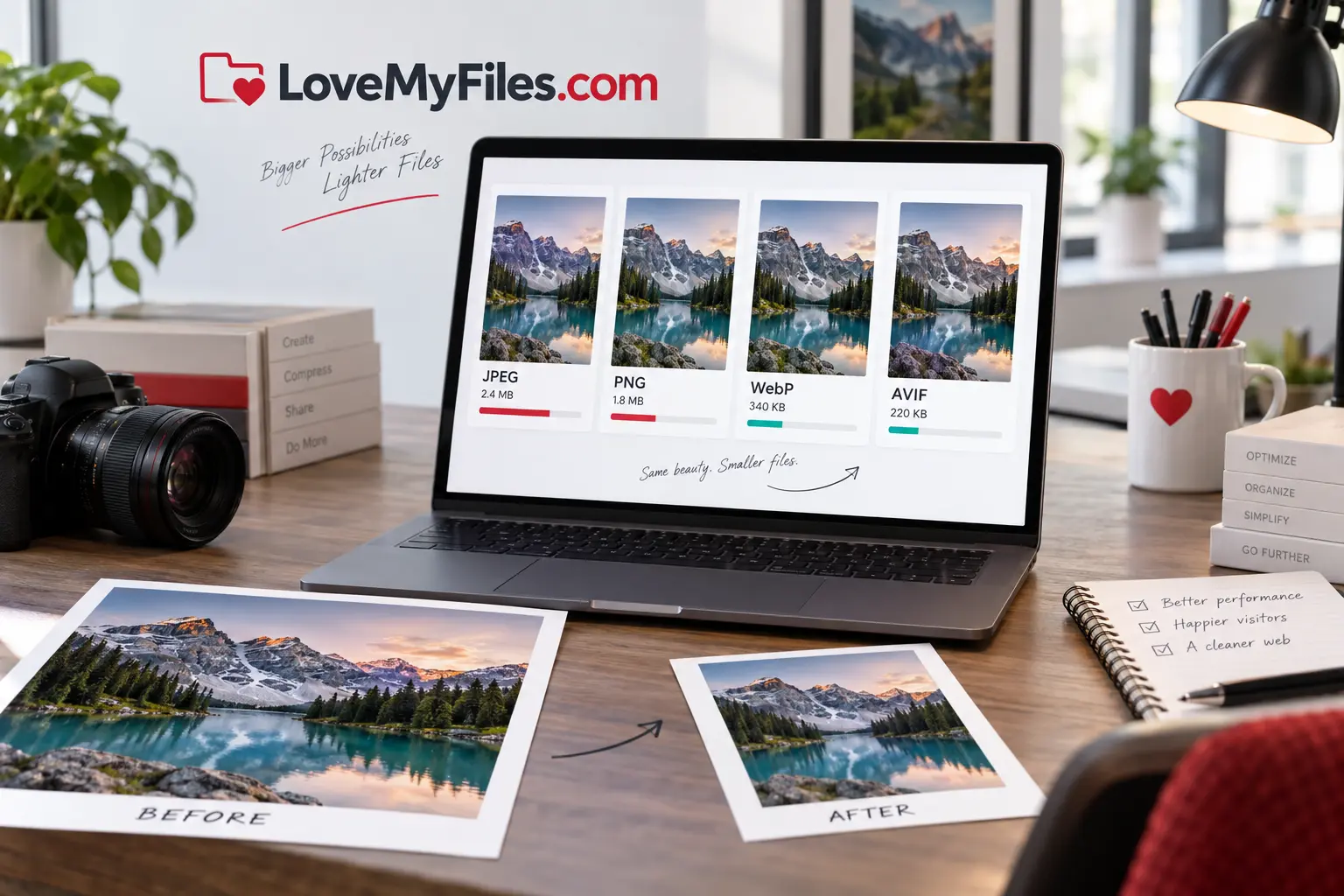
Image Optimization Guide: JPEG, PNG, WebP or AVIF?
Choose the right image format, dimensions and compression settings for faster websites, email and reliable uploads.
Compress a Large Print JPEG for Sharing: Pixels, Size and Colour
Prepare a lighter sharing copy of large JPEG artwork. Understand pixel limits, colour conversion, target size and why you should keep the print master.
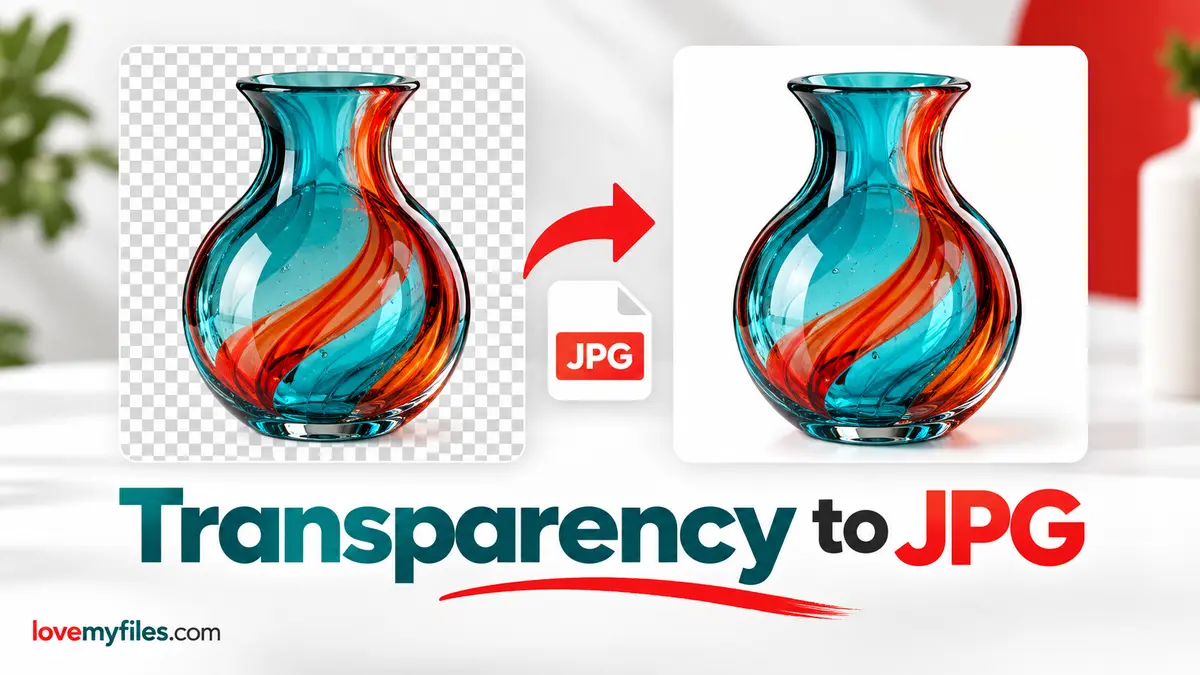
Why Transparent Images Lose Their Background When Converted to JPG
Choose PNG, WebP or a flattened JPEG for transparent artwork. Set the JPG background in LoveMyFiles and inspect edges, lettering and the downloaded copy.
How to Reduce Photo Size to 20KB, 50KB, 100KB or 200KB
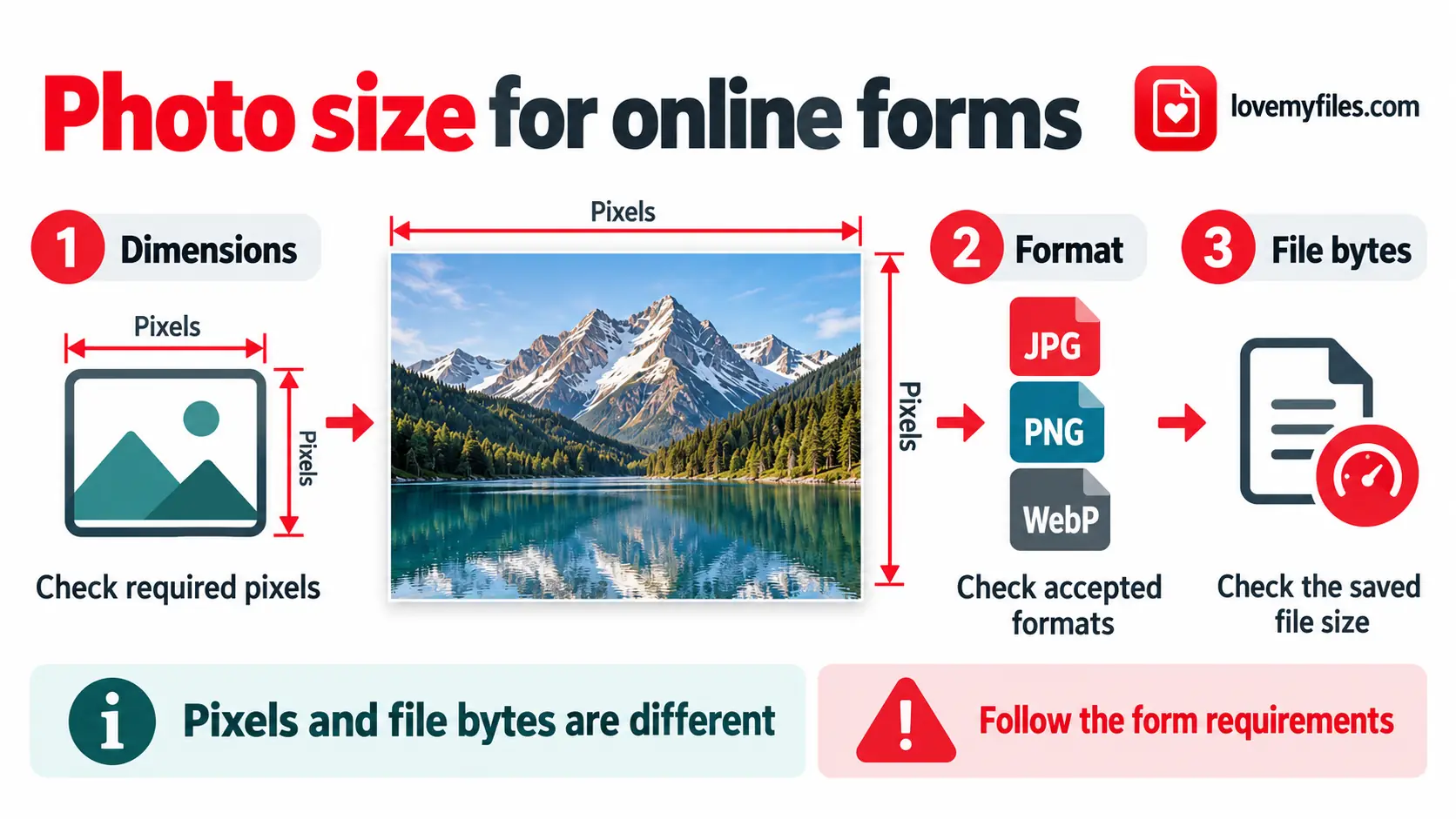
Match a photo's dimensions, format and file size to an upload form using resize, conversion and target-size compression.