How to Reduce PDF Size for Upload Limits
Reduce PDF size for 1MB, 500KB, 200KB or 100KB upload limits. Choose a preset, check actual bytes, and keep scans readable with LoveMyFiles.com.
If an upload form rejects your PDF for being too large, start with the free Compress PDF tool on LoveMyFiles.com, download the result, and check its actual file size. The tool offers High Quality, Recommended, and Maximum Compression. It does not let you enter an exact output size, so a 1MB, 500KB, 200KB, or 100KB limit is something to verify after processing, not a guaranteed result.
Keep the original until the receiving website accepts a readable copy. A smaller file is not useful if the reviewer cannot read a name, amount, stamp, or document number.
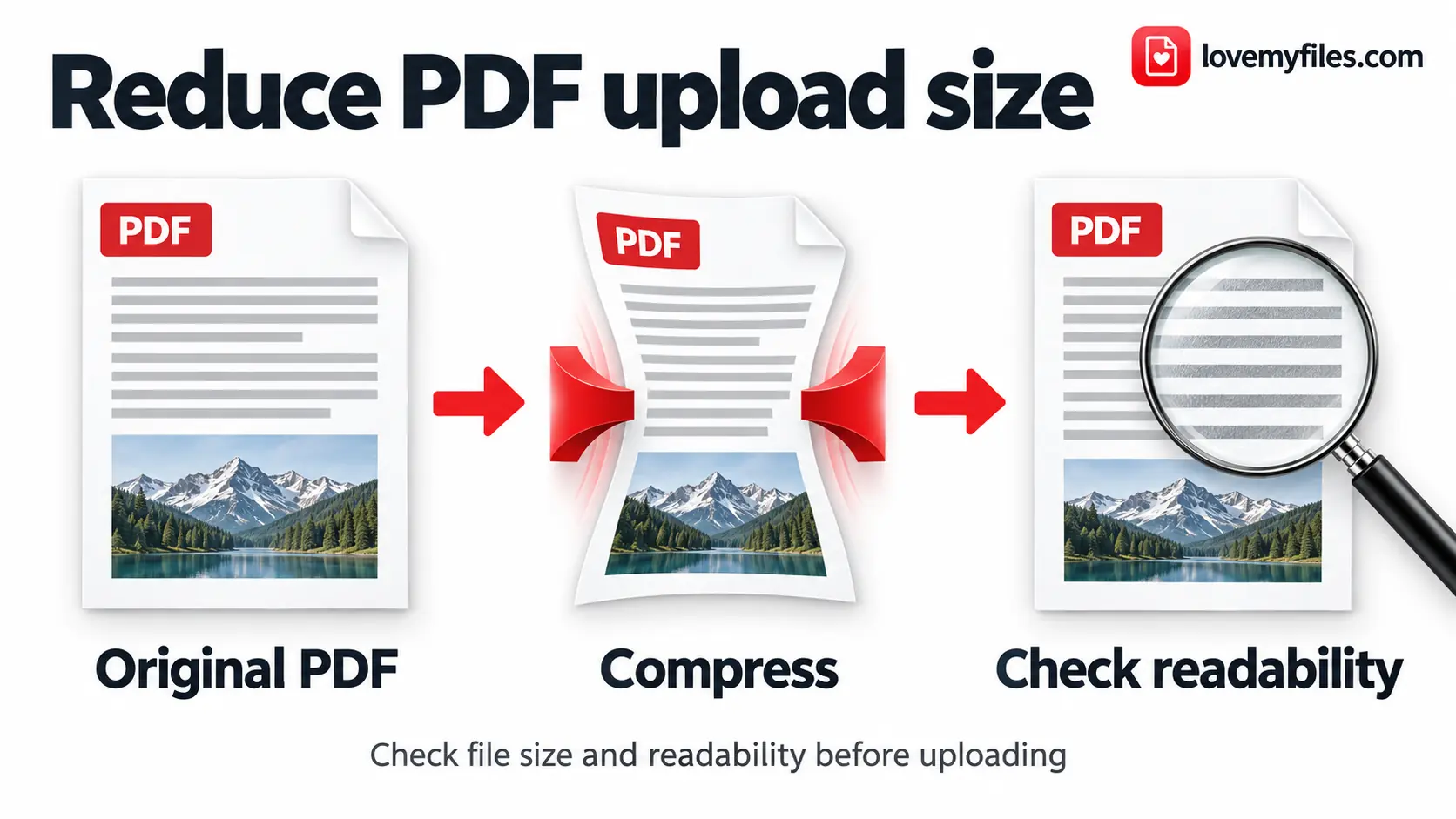
Illustration: compression is followed by a readability check. The diagram does not promise a particular file-size saving.
Check the upload requirements first
Read the requirements beside the destination's upload field. Note the permitted format, maximum size, required pages, and any rules about colour or legibility. These requirements belong to that website; there is no single size limit for all application forms.
Confirm that the destination actually accepts PDF. A form requesting a JPG photograph will not accept a PDF just because it is small. Also distinguish the maximum file you can submit to the compressor from the maximum output the destination accepts. The compressor's own upload ceiling does not tell you whether the finished file meets a 500KB form limit.
If the PDF is already below the destination's limit and opens correctly, try that original first. Processing an acceptable document introduces work without solving a size problem.
Compress the PDF in five steps
- Open Compress PDF and use Choose PDF to select one document.
- Leave Recommended selected for a first attempt, or choose High Quality when fine image detail matters.
- Review Estimated compressed size as a rough guide. It is not the finished file size.
- Select Compress PDF, wait for processing to finish, and use Download PDF on the result page.
- Open the downloaded file, check its actual size and every required page, then upload that copy to the destination.
If the output is still too large, try Maximum Compression using the original PDF as the source. Compare the new download with the first result. Keep the clearest version that satisfies the receiving site's requirements.
Choose a preset by what the pages contain
The three presets offer different trade-offs. Use the document's content to choose a starting point rather than assuming the most aggressive option is always appropriate.
| Preset | Useful starting point | What to inspect afterwards |
|---|---|---|
| High Quality | Detailed photographs, fine diagrams, or pages that will be printed | Whether the saving is enough for the upload limit |
| Recommended | Ordinary documents intended for screen reading | Small text, tables, signatures, and scanned page edges |
| Maximum Compression | An image-heavy PDF that still exceeds the limit | Blurred letters, faint stamps, fine lines, and image detail |
LoveMyFiles.com processes compression on the server using Ghostscript. Its presets correspond to Ghostscript's print, ebook, and screen settings. The engine also enables font compression, font subsetting, and duplicate-image detection. How much those operations help depends on the input. Ghostscript's documentation explains that presets alter the document and can reduce quality.
The estimate is not a compression test
The displayed estimate is calculated from the selected file's size and a range associated with the preset. It does not run a test conversion or inspect whether a particular scanned page can tolerate lower resolution. An estimate below your target is a reason to try the setting, not evidence that the download will meet it.
Review more than the visible page
Ghostscript writes a new PDF rather than preserving the original file structure byte for byte. Its documentation notes that some nonvisual information, including comments, may not carry across. For documents with links, forms, annotations, or digital signatures, keep the original and check the required behaviour in the result. If the recipient requires the original signed document, ask for its accepted submission route before rewriting it.
Work towards 1MB, 500KB, 200KB, or 100KB
Use one workflow for all four targets: compress a copy, inspect the download, compare its byte count with the limit, and change the source only if necessary. There is no special preset for each threshold.
| Destination limit | Decimal ceiling, if that is the site's definition | Practical next step |
|---|---|---|
| 1MB | 1,000,000 bytes | Try Recommended, then check the downloaded PDF |
| 500KB | 500,000 bytes | Compare presets; inspect small text before using the smaller result |
| 200KB | 200,000 bytes | Check whether unnecessary pages or oversized source scans can be removed or replaced |
| 100KB | 100,000 bytes | Revisit the source and required content if compression cannot meet the limit legibly |
These are unit conversions, not promises about compression. NIST distinguishes decimal MB from binary MiB: 1 MB is 1,000,000 bytes, while 1 MiB is 1,048,576 bytes. A website's instructions determine which limit applies.
LoveMyFiles.com's PDF size display divides by 1,024 and rounds the result while using KB and MB labels. For a strict upload ceiling, check the downloaded file's exact bytes in your device's file information. For example, 500 KiB equals 512,000 bytes, which exceeds a decimal 500KB ceiling. Leave room below the limit rather than relying on a rounded display at the boundary.
A long scanned document may simply need more data than a very small limit permits. Do not discard required pages or turn readable writing into blur to force it under 100KB.
Change the source when a preset is not enough
For scans and photographed paperwork
Start by checking the source pages. A photograph of a small receipt with a large surrounding desk contains unnecessary image area. Prepare a better-framed copy of the source image without cutting off text, stamps, or signatures. If the scan is already blurry, more compression cannot restore missing detail.
When you still have the JPG originals, Compress Image can help prepare smaller image files before you rebuild the document with JPG to PDF. Open the prepared images first and confirm their format is accepted by the converter. The existing image optimization guide explains format and dimension choices. Avoid repeatedly re-encoding the same JPEG: successive lossy exports can accumulate damage. Adobe's JPEG optimization guidance recommends saving from the original image rather than a previously saved JPEG.
For a resume or other native-text document
If you have the editable original, check for large photographs, logos, or unnecessary embedded material and export a fresh PDF. Keep native text as text where possible. Photographing or screenshotting a text document introduces image data and removes the convenience of selecting its words.
When the content itself needs changes, the existing PDF editing and formatting guide helps you choose an editing route. Review the fresh export for page breaks, fonts, and readability before measuring it.
For extra or duplicate pages
Use Organize PDF to remove an accidental duplicate or blank page. If the destination requests only certain pages, Split PDF can extract that selection. Removing content can reduce size, but it also changes the submission; keep every page the recipient requires.
Troubleshooting
The result has the same size as the original
Some PDFs already contain efficient images and fonts or contain little image data to reduce. LoveMyFiles.com's compressor compares the generated PDF with the input. If the generated file is not smaller, it returns the original bytes instead. An unchanged size can therefore be an expected result, not a failed download.
Try a different preset from the original, or revise the source where you can. Repeating the same operation on an already efficient document does not create new information to remove.
The file is smaller, but the scan is hard to read
Return to the original and use Recommended or High Quality. Inspect the smallest important writing, not just the page title. If none of the outputs is both readable and below the limit, prepare clearer source scans or ask the recipient how to submit a larger required document.
The website still says the PDF is too large
Check that you selected the downloaded result rather than the original. Then inspect exact bytes, the permitted format, and any per-file or total-attachment limit stated by the destination. A PDF that looks like "500 KB" in a rounded display may still exceed the form's actual threshold.
The PDF will not upload or process
Open it in a PDF viewer before retrying. A password-protected or damaged document needs a valid, accessible source; the compression form has no password-entry step. If you are authorized to use the document, obtain an accessible copy from its creator. For a size validation error, follow the compressor's current limit and consider extracting the needed pages if the destination permits that.
What happens to the uploaded PDF?
This compression workflow uploads your PDF to LoveMyFiles.com's server. Processing files are stored outside the public web directory, and access to job pages and downloads is checked against the matching user or guest identity. Keep your downloaded result locally and review the current Security and Privacy pages before uploading a document that needs particular handling.
Frequently asked questions
Can every PDF be reduced below 500KB or 100KB?
No. Page count, image detail, fonts, and the starting file all affect the result. A small threshold may be incompatible with keeping all required pages readable. Check the output rather than assuming a preset guarantees success.
Where do I enter a target file size?
The PDF compressor has three preset choices and an estimate; it has no field for an exact target. Treat the receiving website's size requirement as a check on the downloaded file.
Can I reduce a PDF without losing quality?
Some savings may come from more efficient storage, but the available presets can also change image detail and document structure. High Quality is a less aggressive starting choice; it is not a promise of an identical result. Compare the output with the original.
Does PDF compression make a scan searchable?
Compression does not include a text-recognition step. An image-only scan remains image-based unless it is separately processed with OCR. Do not use compression as a substitute for recognizing text.
Can changing the filename make a PDF smaller?
No. Renaming a file does not change the document's contents or compress its data. Use a clear filename, but measure the actual downloaded file.
Ready to prepare your upload? Compress your PDF free on LoveMyFiles.com, then submit the readable copy that fits the destination's actual limit.
Try a related tool
Compress PDF files online with a selectable quality level, an estimated output size, and a separate downloadable result.
Compress PDF Online - Reduce PDF File SizeRelated Guides
PDF Too Large for a Job Application? How to Make Your Resume Smaller
Resume too large to upload? Check the job portal's limit, compress a copy and review the downloaded text, links and layout. If it is still too large, optimize the source images and export again. Keep selectable text for application systems that extract your details.

Build an Event Sharing Kit with PDFs, Images, Short Links and QR
Prepare an event PDF, screen images, a managed link and a printable QR. Check privacy, file quality and the complete visitor journey before sharing.
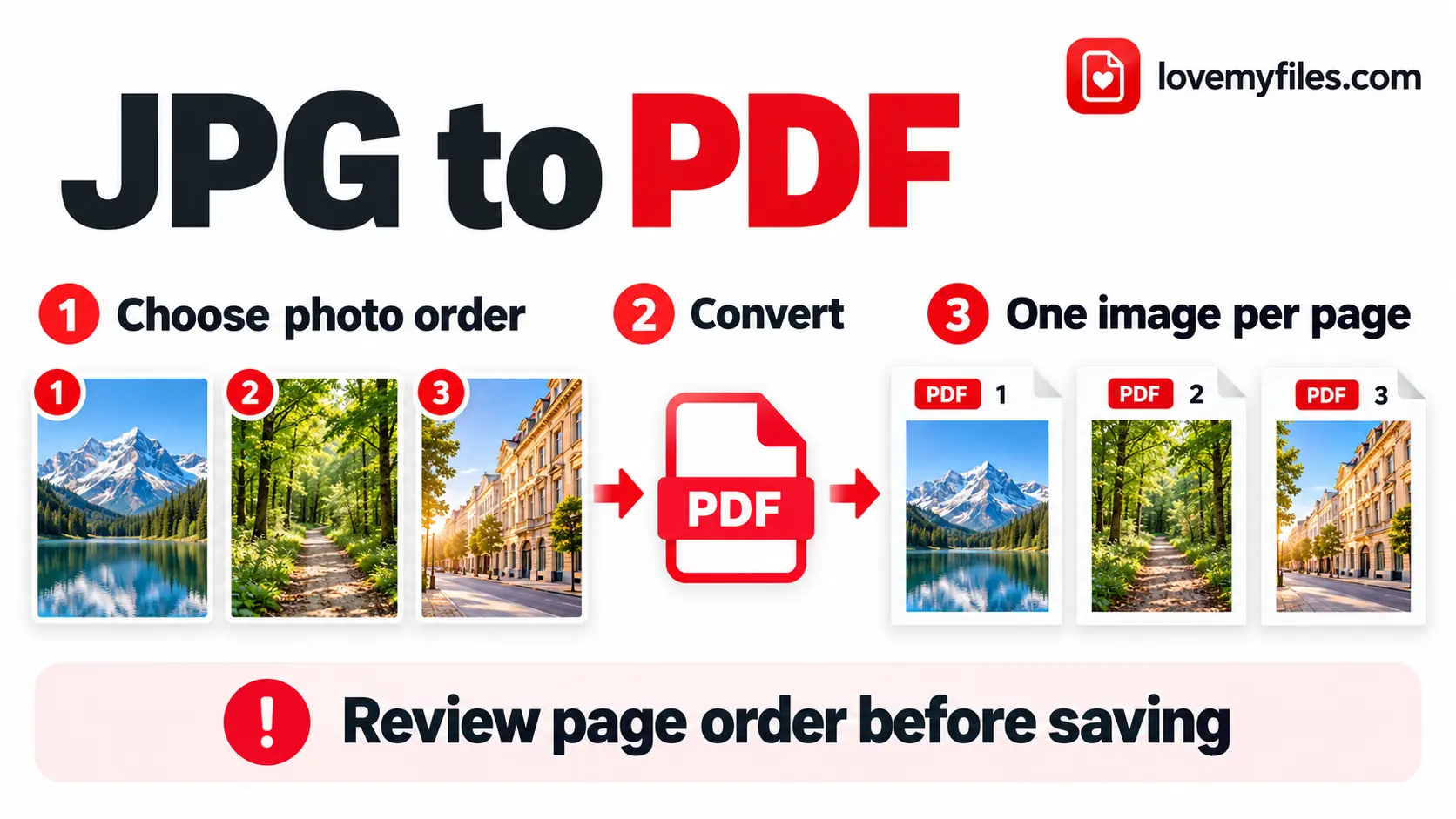
How to Convert Multiple JPGs to One PDF for Free
Combine JPG and PNG images into one PDF with LoveMyFiles.com. Set page order, size, orientation and margins, then check readability and upload size.

Organise Scanned Receipts and Documents into a Usable Sharing Copy
Prepare clear document images, group related PDFs, extract text when appropriate and check privacy without treating OCR output as verified financial data.